
Clinician Library Guide
The handouts coaches give participants, now in HealthYou instead of the Coach-Clinician Forum folder on SharePoint. This guide takes Library Editors and coaches through it from start to finish. Each module takes about 5 minutes.
What it is and who does what
All 164 files from the SharePoint folder were copied into HealthYou on November 2, 2026. Copies of the same file were merged, so there are 158 handouts under 20 topics. A handout can sit under more than one topic, and Spanish handouts are linked to their English versions.
| Who | Where | What they can do |
|---|---|---|
| Library Editors and Admins | Admin portal: https://app.myhealthyou.com/admin/ > Health Coaching > Clinician Library | Everything: review, add, change, replace files, retire, manage topics. |
| Other admin-portal staff | Same page | Read, preview and download. |
| Coaches | Coach Portal: https://app.myhealthyou.com/coach/ > Clinician Library | Read, preview, print and download; star favourites. No editing. |
From SharePoint to a participant
- Imported. Every SharePoint file came in once. Anything the import had to guess about went on Needs review.
- Reviewed. A Library Editor files each one under its topics, says who it is for, adds a PDF where only a Word file exists, and presses Finalize.
- Maintained. Editors add new handouts, replace files with new versions and retire old ones. Coaches see each change straight away.
- Sent. Coaches pick handouts in the session notes with + Add from Library. They are attached to the participant's session summary email when the session is saved as Completed, or sent straight away from the notes.
- Tracked. Every handout and link sent is kept on the participant's page under Materials sent, and editors see how often each handout has gone out.
Module 1 · Getting edit access
- give someone edit rights to the library
Admins can always edit. Anyone else needs an admin-portal account with Library Editor ticked.
- Admin portal > Settings > User Management.
- Open the person with Edit, or + Add User if they have no account yet.
- Under Left-Nav Access, tick Health Coaching (to see the page) and Library Editor (to change it), then save.
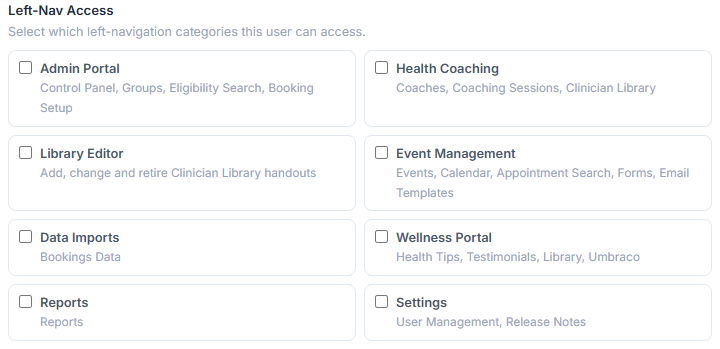
Library Editors today: Allison Curtis, Erin Williams and Maggie Bowring.
Module 2 · Finding your way
- find any handout by topic, search or filter
- read a handout without downloading it
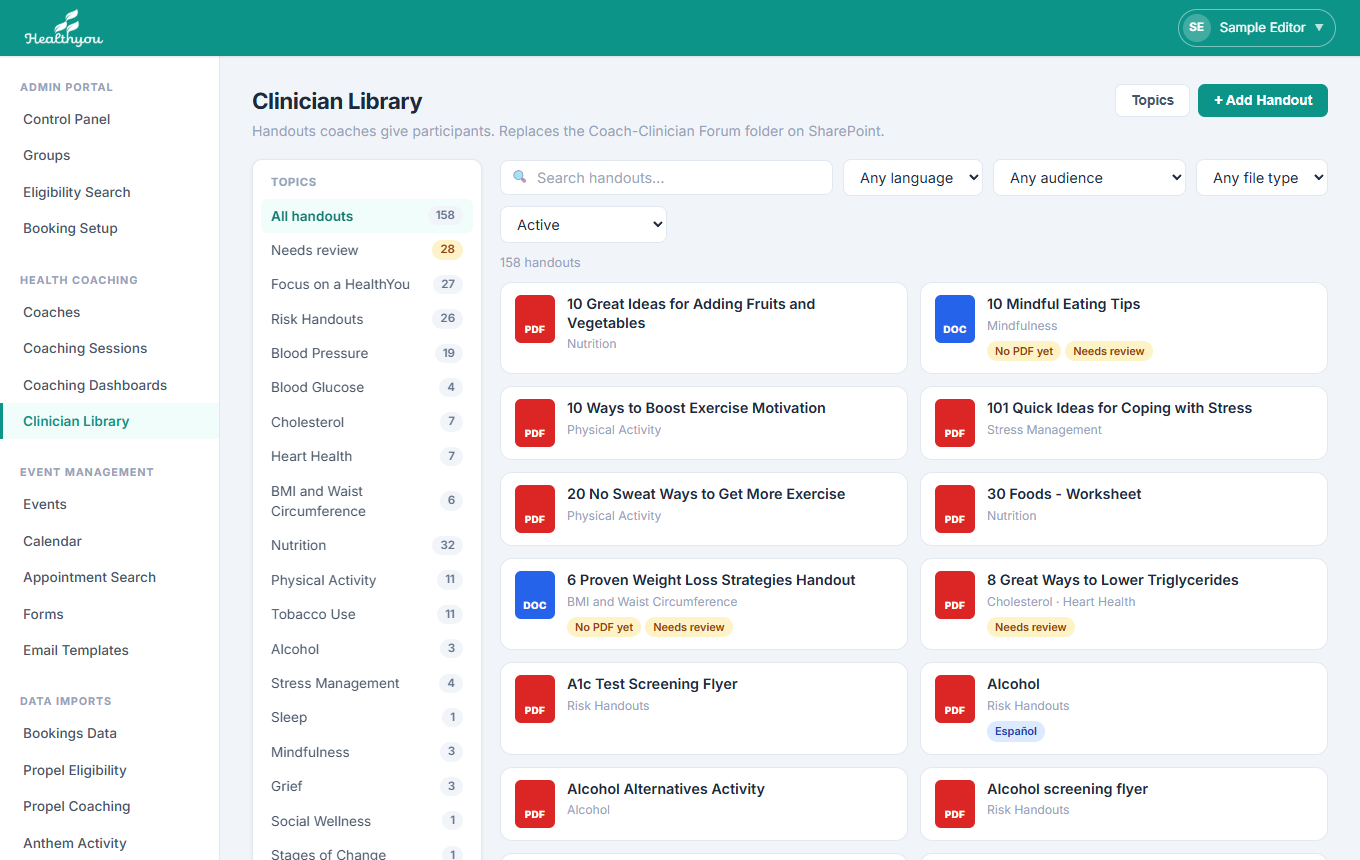
- Topics on the left narrow the list. All handouts shows everything; Needs review shows what still needs an editor.
- Search looks in titles, descriptions, tags, sources and topic names. Several words find handouts with all of them.
- Filters: language, audience (participant handouts or coach reference), file type, and Active / Retired.
- A to Z / Most sent sets the order. Most sent puts the handouts coaches send participants most at the top; each card shows Sent 3× once it has gone out.
- Click a card to open the handout. Sent to participants in its details says how many times, and when last.
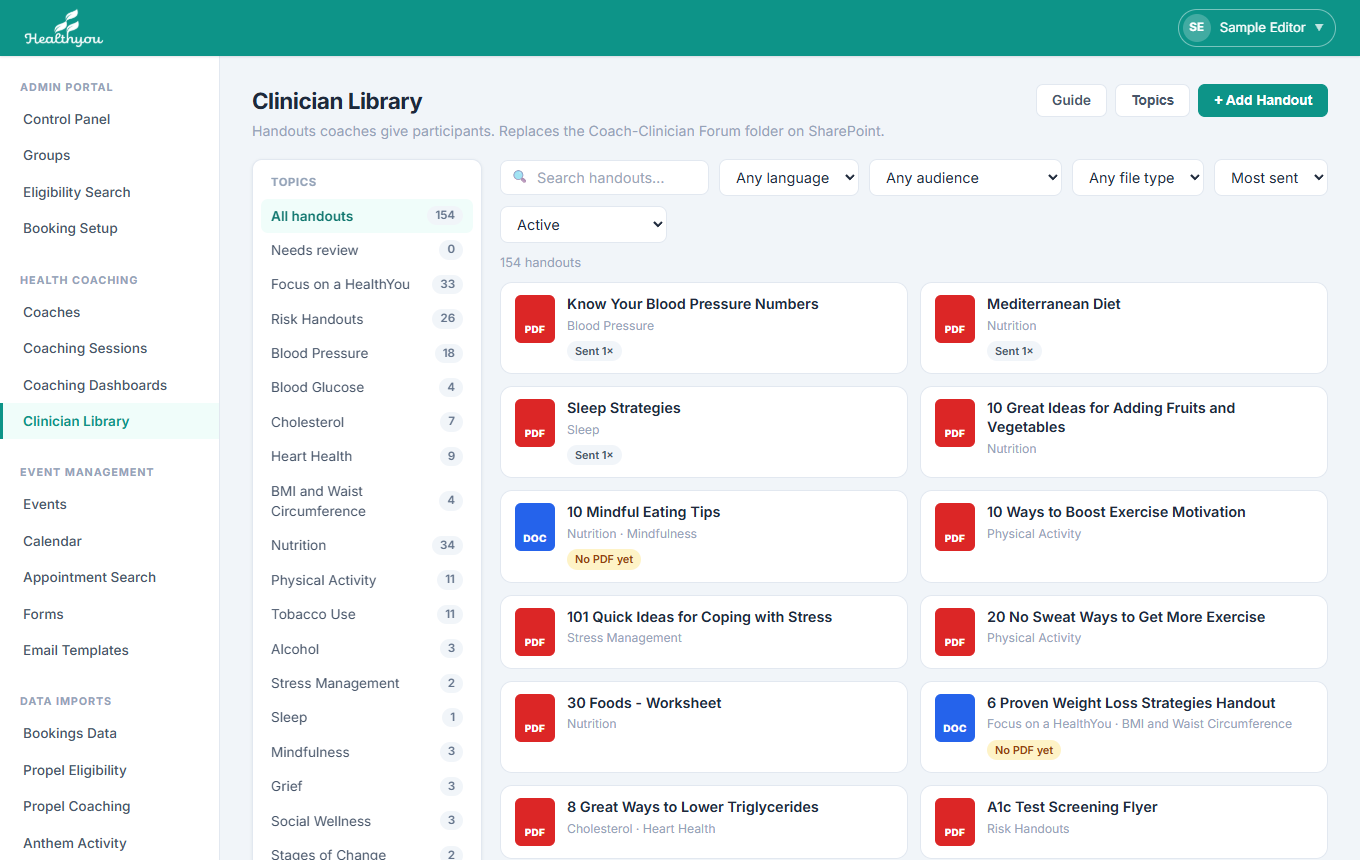
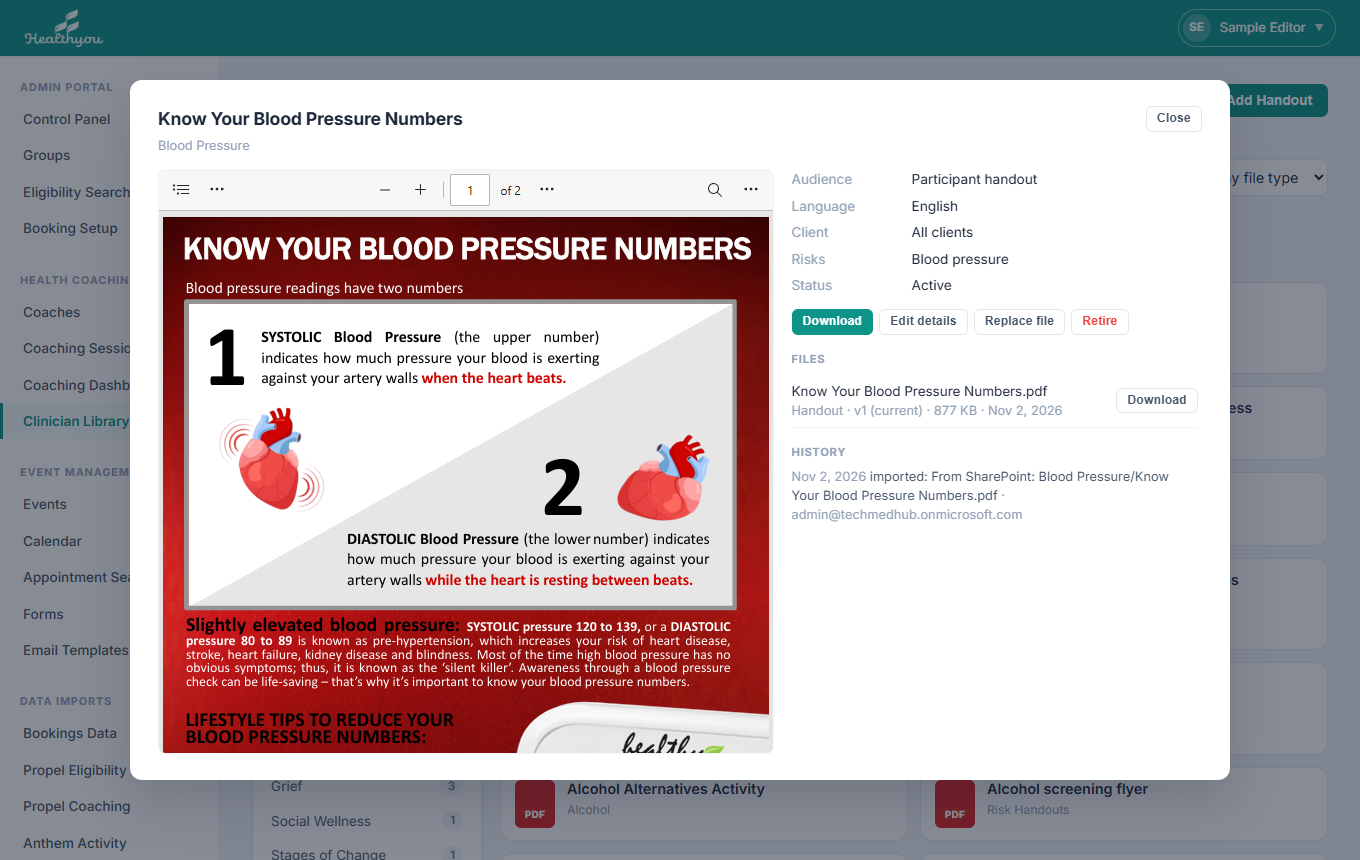
PDFs and pictures show as they are. Word and PowerPoint files open in Microsoft's Office viewer inside the page (see Module 3).
Module 3 · Working through Needs review
- file a handout under the right topics and take it off Needs review
- add the PDF to a Word-only handout
- retire a copy that is not wanted
The import put 28 handouts on Needs review. Each one says why at the top. Work through them from the Needs review topic: after each Finalize, the next one opens.
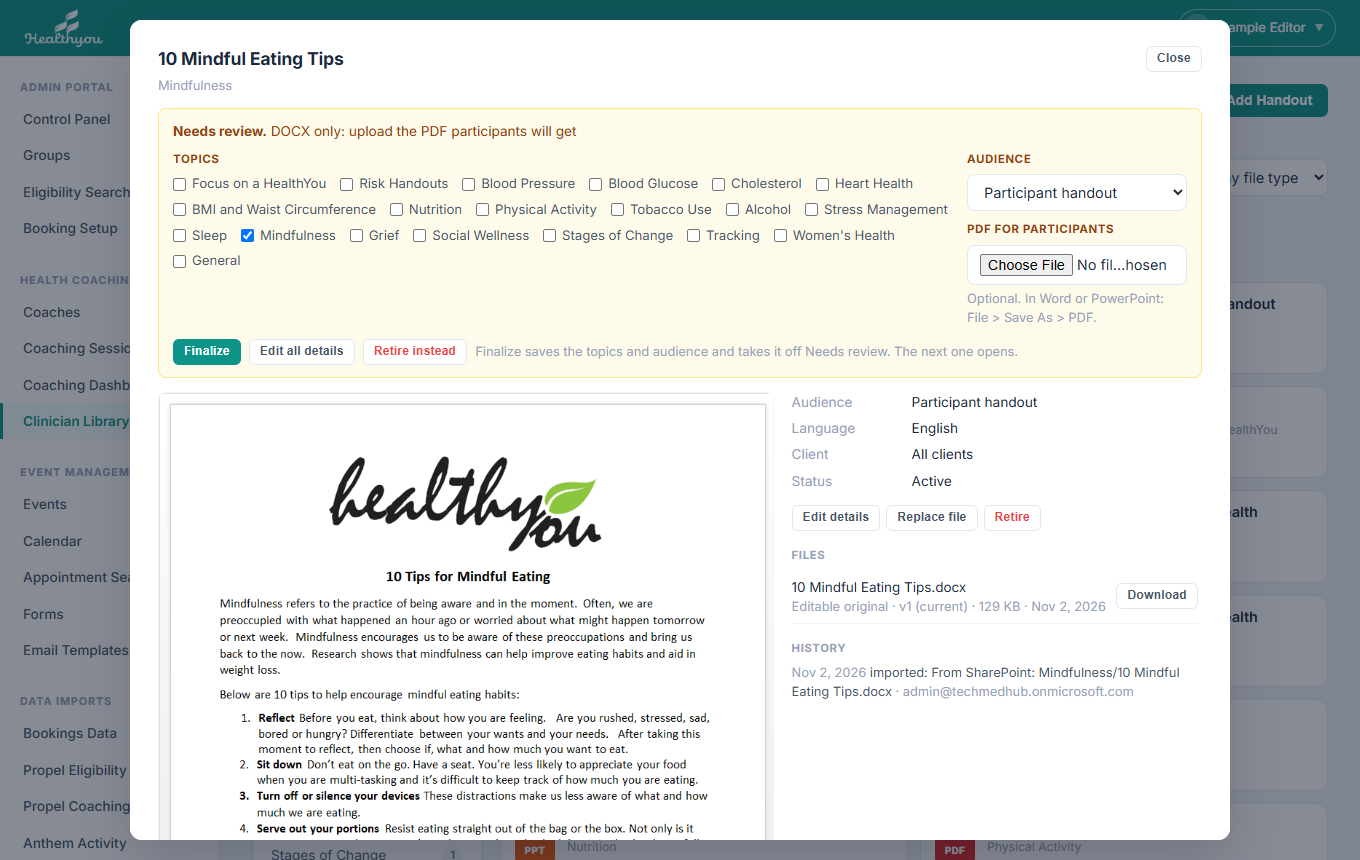
- Click Needs review on the left, then the first handout.
- Read the reason in the yellow panel and look the file over below it.
- Tick every Topic it belongs under, and untick any that are wrong.
- Set Audience: Participant handout, or Coach reference only for material that should never go to a participant.
- Word or PowerPoint only? Make a PDF of it (in Word or PowerPoint: File > Save As > PDF) and choose it under PDF for participants. You can also finalize now and add the PDF later with Replace file.
- Press Finalize. It is saved under those topics, taken off Needs review, and the next one opens.
What each reason means
| Reason | What to do |
|---|---|
| DOCX only / PPTX only: upload the PDF participants will get | Add a PDF in the panel (step 5), then Finalize. The Word file stays as the editable original. |
| Set to coach reference only: confirm | Leave Audience as Coach reference only if that's right, or change it to Participant handout. Then Finalize. |
| Possible copy: 2 (or 3) handouts are called … | Open each copy and keep the best. Finalize that one and press Retire instead on the others. |
| Was in 2 folders on SharePoint | Nothing to fix. The same file was in two folders and is now one handout under both topics. Check the topics and Finalize. |
| Local park map: limited to City of Colorado Springs | Leave the client as is if it is only for the City; otherwise clear Client under Edit all details. Then Finalize. |
| AVIF image: many email programs cannot show it | Replace it with a PDF or PNG (Replace file), or retire it. |
Module 4 · Adding a handout
- add a new handout with the details coaches need
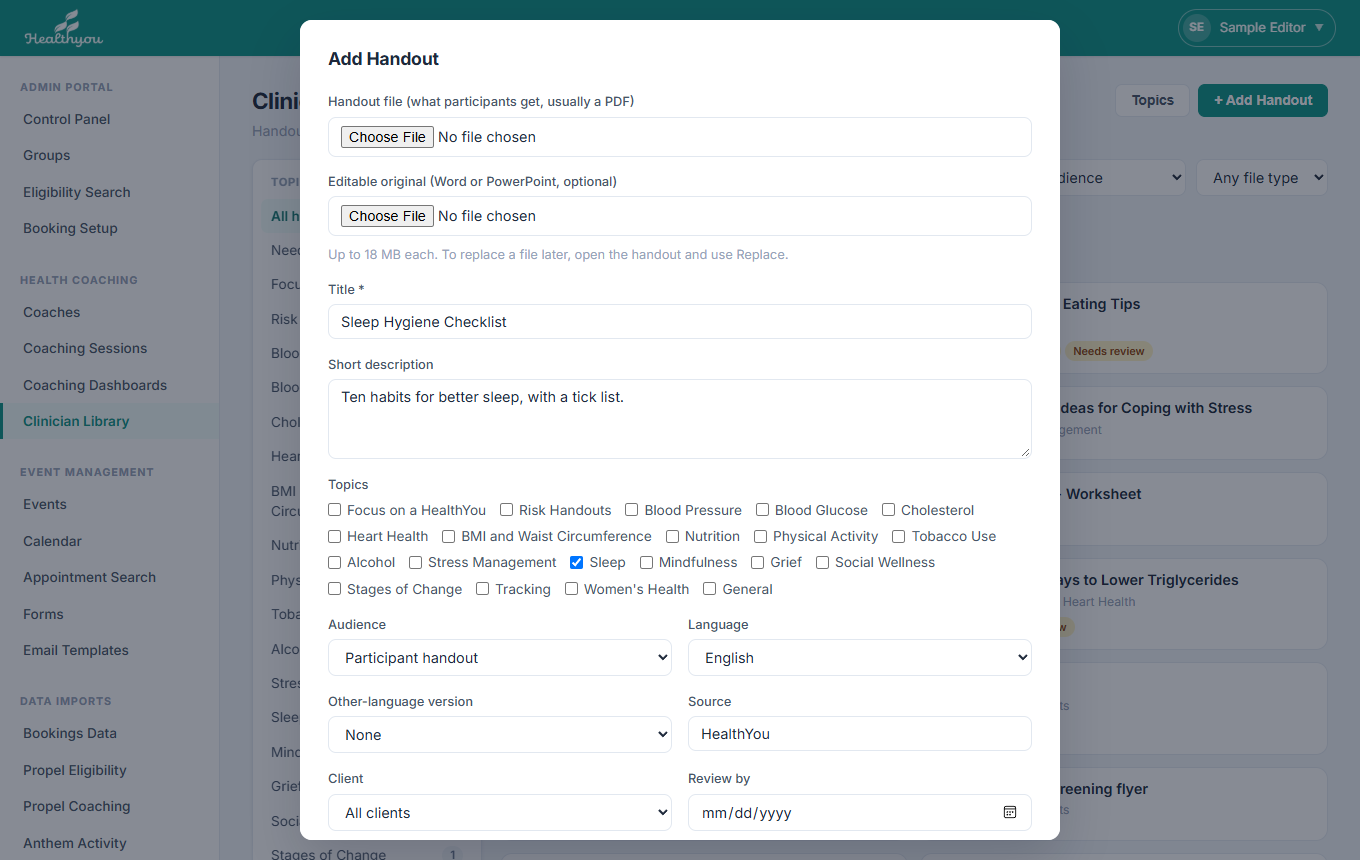
| Field | What to put |
|---|---|
| Handout file | What participants get, normally a PDF (up to 18 MB). |
| Editable original | Optional: the Word or PowerPoint it was made from, so it can be changed later. |
| Title and description | What coaches see when choosing. Keep the description to a line. |
| Topics | Every topic it belongs under. |
| Audience | Participant handout, or Coach reference only (never sent to participants). |
| Language / Other-language version | Spanish handouts: set Spanish and pick the English version. The link is made both ways. |
| Source | HealthYou for our own (Focus on a HealthYou), otherwise AHA, ADA, VA, CDC and so on. |
| Client | Only for one client's participants (e.g. local park maps); otherwise All clients. |
| Review by | When the content should next be checked. |
| Related biometric risks | The screening results it speaks to; used later to suggest handouts from a participant's risks. |
| Tags | Extra search words, e.g. recipe, log sheet. |
Module 5 · Updating, replacing, retiring
- change a handout's details
- put up a new version of the file
- take a handout out of use, and bring it back
- Edit details changes anything in the form from Module 4.
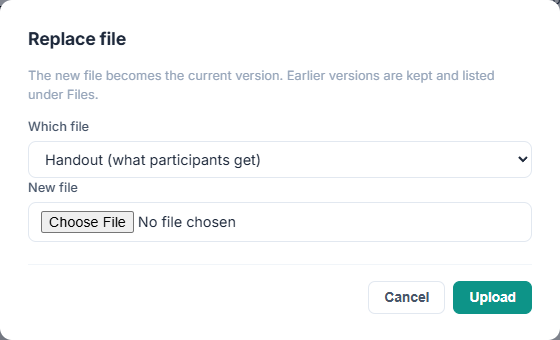
- Replace file uploads a new version, either of the handout or of the editable original. The new file becomes current straight away; earlier versions stay listed under Files and can still be downloaded.
- Retire hides a handout from coaches without deleting it. Find it again with the Retired filter and press Restore.
- History lists who added, changed, replaced, finalized or retired it, and when.
Module 6 · Topics
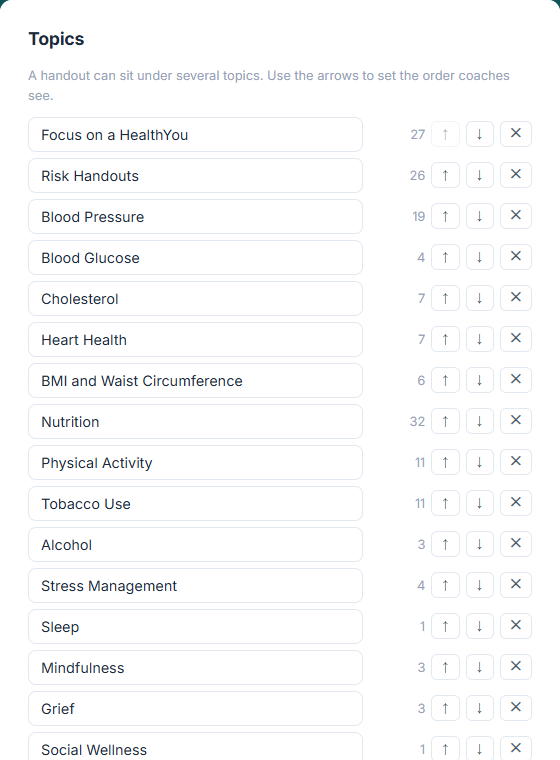
- Click Topics beside + Add Handout.
- Type over a name to rename it. The arrows set the order coaches see. ✕ removes a topic once no handout uses it.
- Type a name at the bottom and press Add for a new topic.
Module 1 · Finding a handout
- find the right handout by topic, search or filter
Sign in to the Coach Portal (https://app.myhealthyou.com/coach/) and choose Clinician Library in the menu, between My Customers and My Hours.
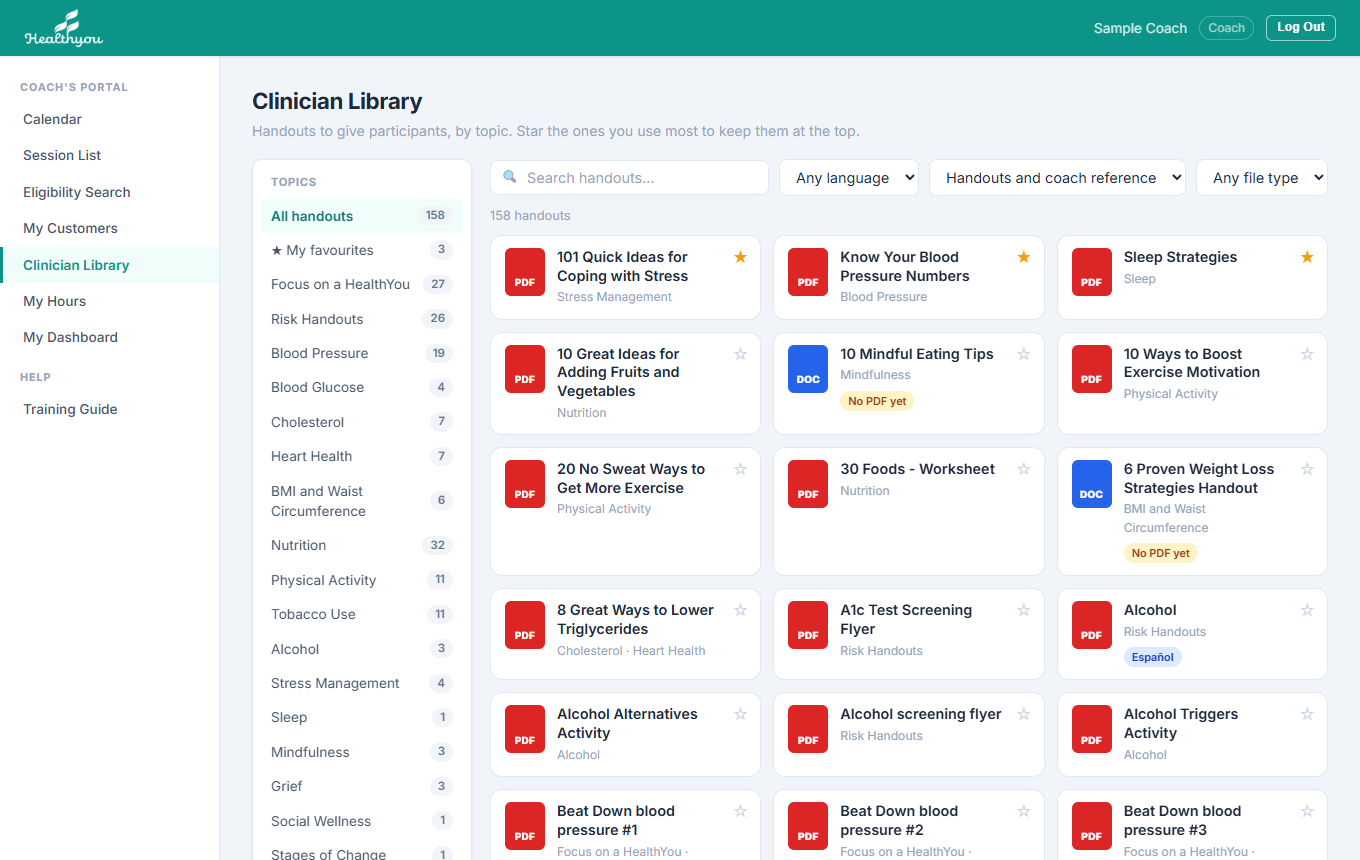
- Pick a topic on the left, or search for any word in a title, description or source.
- Filters: language (Spanish), audience (participant handouts or coach reference) and file type.
- The page remembers the topic you were last in.
Module 2 · Reading, printing, downloading
- read a handout in the page
- print or download it
- switch between the English and Spanish versions
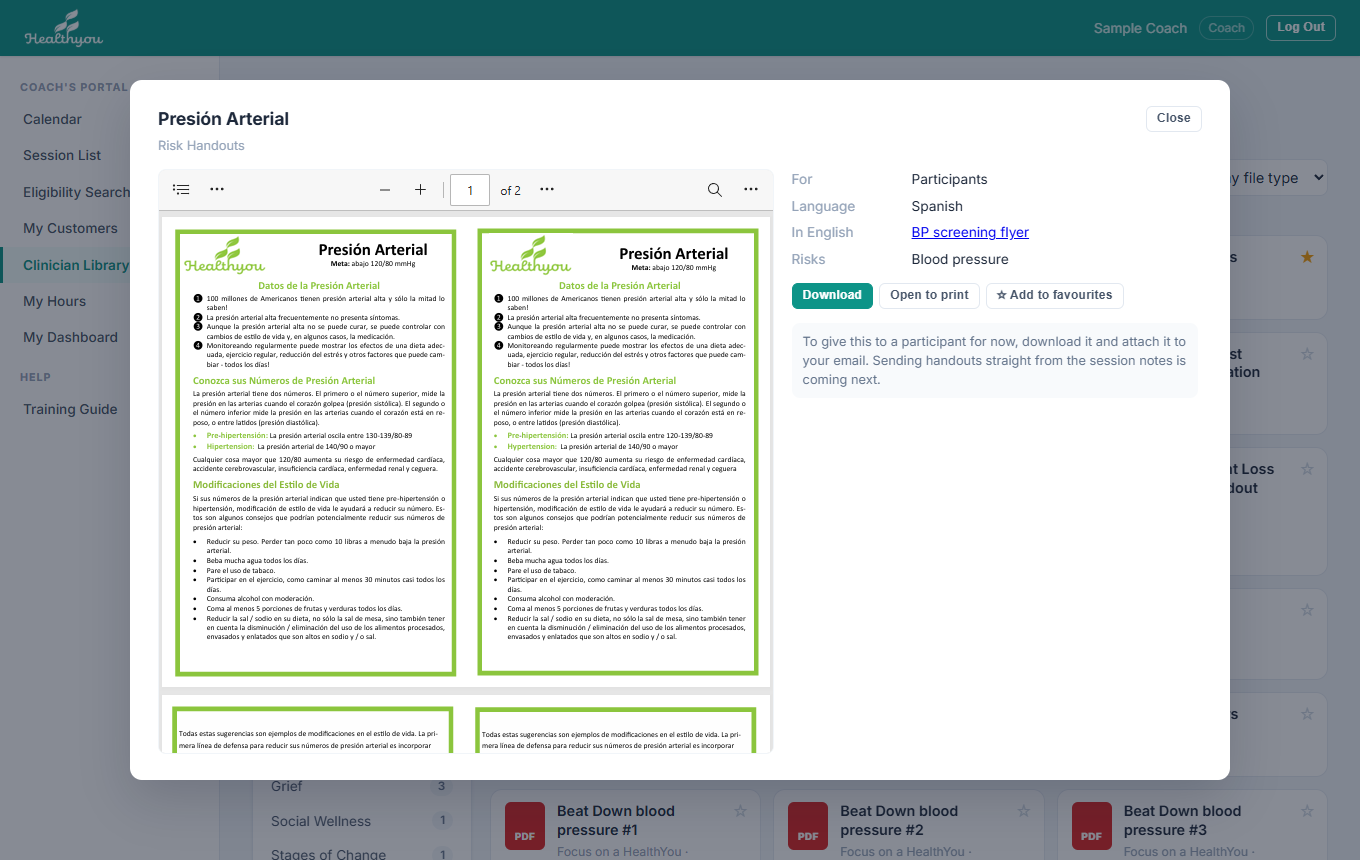
- Click a handout to read it in the page.
- Download saves the file. Open to print opens it in a new tab, ready to print.
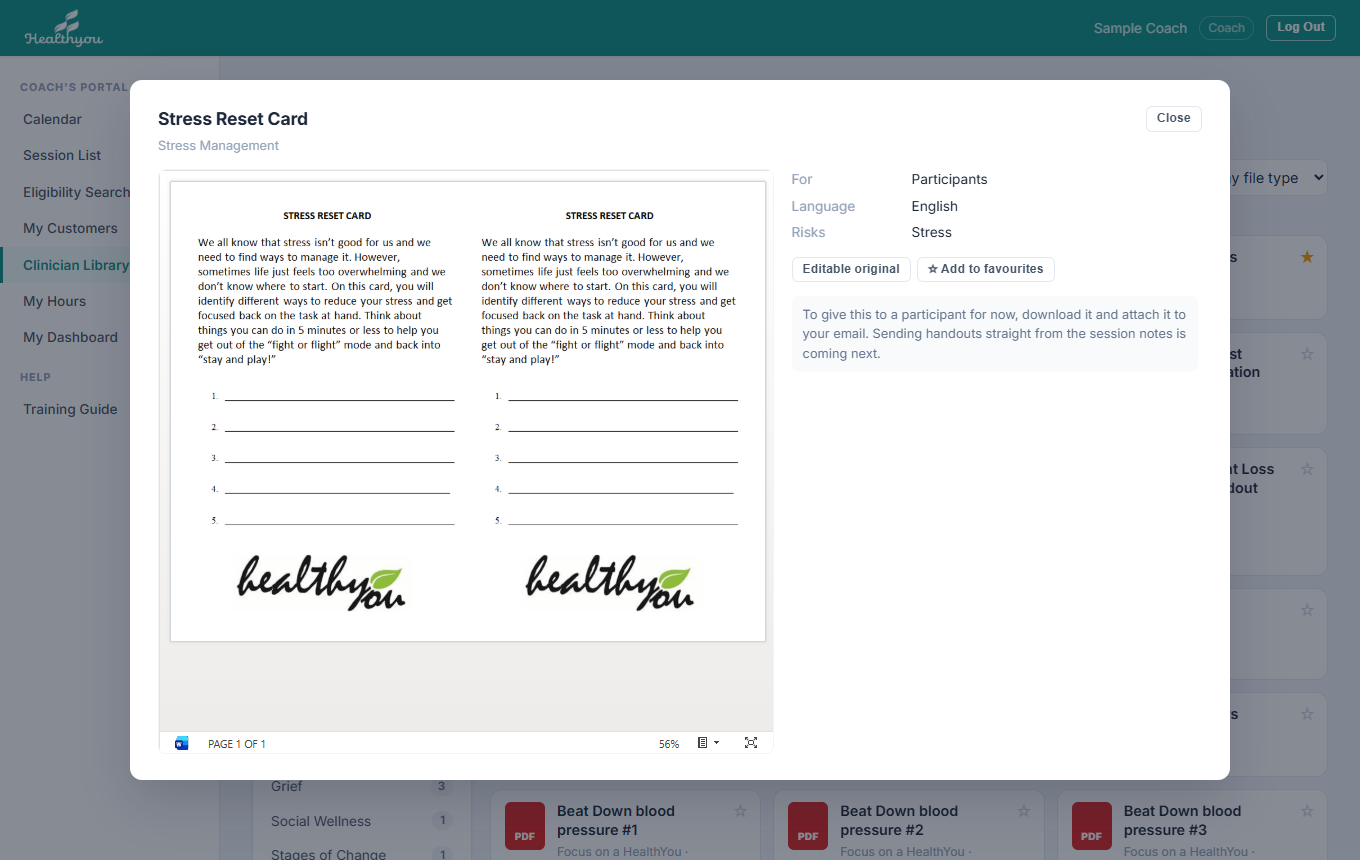
- Editable original downloads the Word or PowerPoint version, where there is one.
- A Spanish handout shows In English with a link, and an English one shows In Spanish.
Module 3 · Favourites and your phone
- keep the handouts you use most at the top
- use the library on your phone
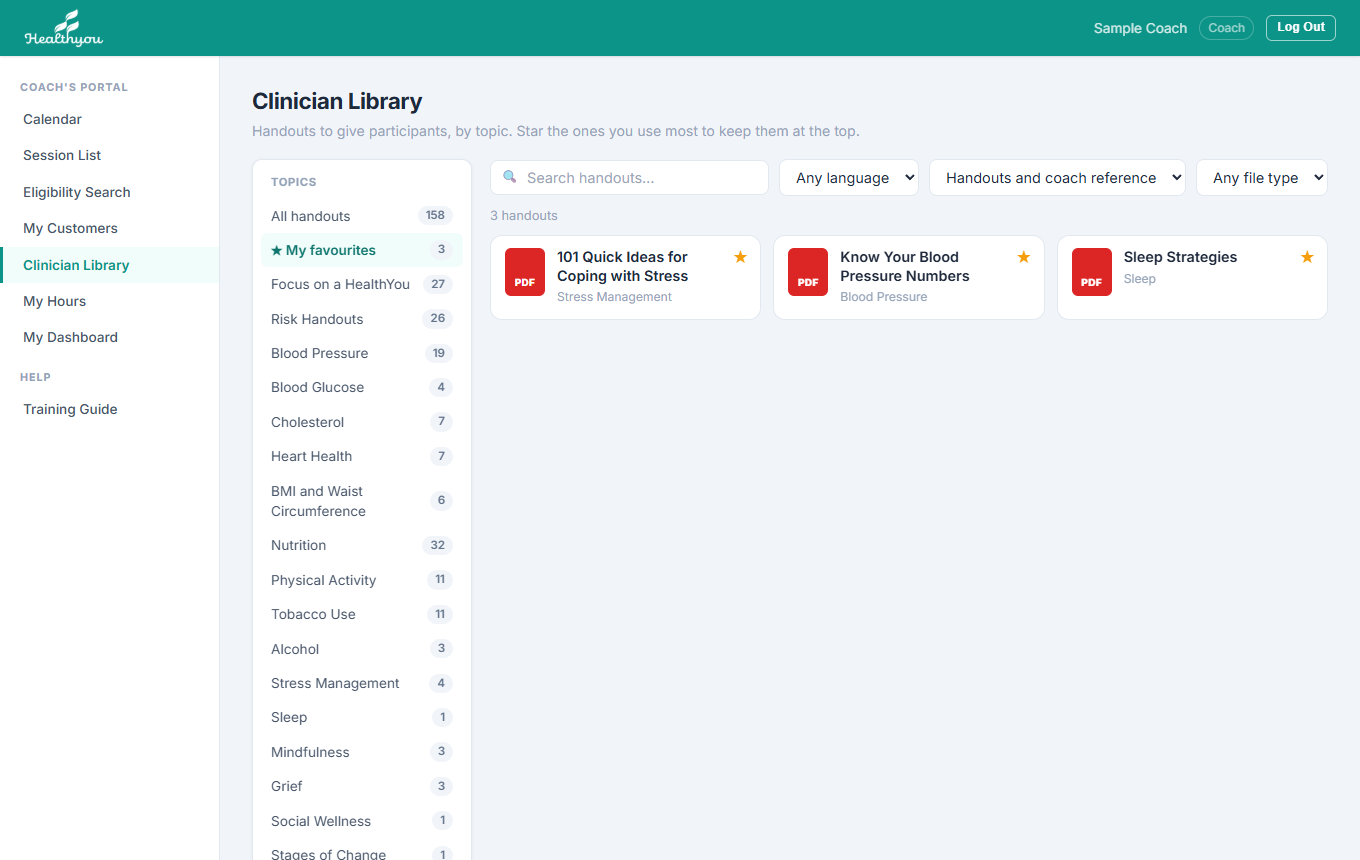
- Tap ☆ on a card (or Add to favourites on an open handout). It turns to ★.
- My favourites at the top of the topics shows just yours. Your favourites are your own; other coaches have theirs.
- Tap ★ again to remove one.
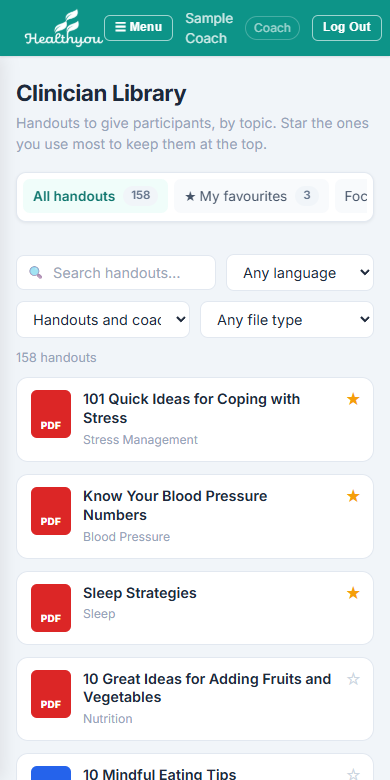
Module 4 · Giving a handout to a participant
- pick handouts and web links in the session notes
- send them with the session summary, or straight away
- Open the participant from your Session List or Calendar and select the session.
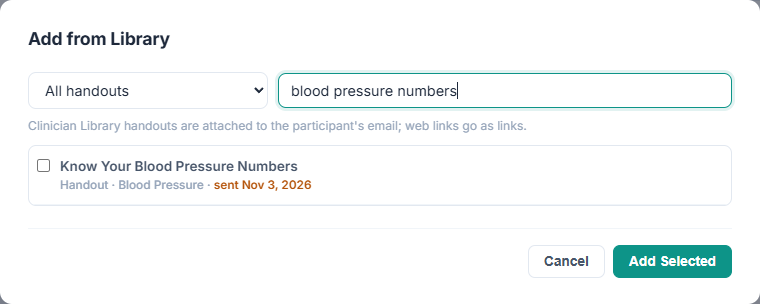
- In the session notes, under Educational Materials & Other Referrals, press + Add from Library.
- Pick a topic (or ★ My favourites) and type in the search box. Tick every handout you want; ticks stay when you change the topic or search. Web links are further down the list, under Web links.
- Anything this participant has already been sent shows sent and the date in orange, so you do not send it twice by mistake.
- Press Add Selected, then Save Notes.
- Saving the session as Completed sends the participant their session summary with the handouts attached. To send them straight away instead, press Email these to the participant.
You can still Download or Open to print any handout from the Clinician Library page to hand it over another way. A handout given that way is not in the participant's Materials sent list.
Module 5 · What a participant has been sent
- see every handout and link a participant has been emailed
- tell whether the email reached them
On the participant's page, Materials sent sits on the right, under Completed Biometric Screenings. It lists every email that carried materials, newest first, whichever coach sent it.
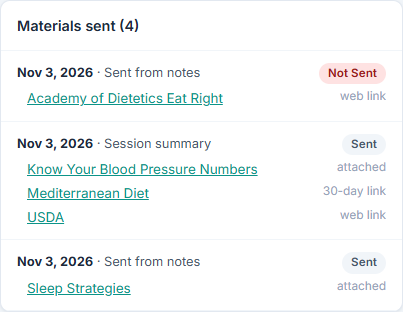
- Each email shows its date, whether it was the Session summary or Sent from notes, and the follow-up number.
- Under it, what went and how: attached, 30-day link (a handout too large to attach) or web link. Click a name to open it.
- On the right, the email's state: Sent (handed to the mail service), Delivered (their mail server accepted it), or in red Not sent, Bounced or Failed.
What the labels mean
| Label | Meaning |
|---|---|
| PDF / DOC / PPT / IMG | The kind of file. DOC and PPT open in the Office viewer. |
| Español | A Spanish handout. Open it to find its English version. |
| Coach reference / Coach only | For coaches, not for participants. |
| City of Colorado Springs only (or another client) | Only for that client's participants. |
| No PDF yet | Only the Word or PowerPoint file is in the library so far; editors are adding the PDF. |
| Needs review (editors only) | Waiting for an editor to confirm it; see Library Editors, Module 3. |
| Retired (editors only) | Taken out of use; coaches do not see it. |
| Sent 3× (admin portal) | How many times coaches have sent it to participants. |
| sent Nov 3, 2026 (Add from Library) | This participant was already sent it on that date. |
| attached / 30-day link / web link (Materials sent) | How it went: as a file with the email, as a download link that works for 30 days, or as a link to a website. |
| Sent / Delivered (Materials sent) | Sent: handed to the mail service. Delivered: their mail server accepted it. |
| Not sent / Bounced / Failed (Materials sent) | It did not reach the participant. See Coaches, Module 5. |
Troubleshooting
| You see | What to do |
|---|---|
| No Clinician Library in the admin menu | Ask an admin to tick Health Coaching for you in User Management. |
| No Edit, Replace or Finalize buttons | You need Library Editor (Library Editors, Module 1), and you must be in the admin portal, not the Coach Portal. |
| Choose at least one topic before finalizing | Tick a topic in the review panel, then Finalize. |
| The preview stays blank for a while | The Office viewer is still opening the Word or PowerPoint file; give it a few seconds, or use Download. |
| … too large for the Office viewer (10 MB) | Use Download. Editors: a PDF of it shows straight away. |
| … the limit is 18 MB when uploading | Save a smaller PDF (in Word: File > Save As > PDF > Minimum size). |
| A handout has gone | It was retired. Editors can find it with the Retired filter and Restore it. |
| A handout is not in Add from Library | It is coach reference, retired, or has no PDF yet. Coach reference is never sent to participants; ask a Library Editor about the others. |
| The participant says the handout never came | Look at Materials sent on their page. If it is red, check their email address and send again. If it says Delivered, ask them to look in junk mail for an email from HealthYou. |
| A 30-day link has stopped working | Send the handout again from the session notes; it comes with a new link. |
| Asked to sign in when opening the library | The library itself needs your HealthYou sign-in. This guide does not; share its link freely. |
This guide: https://app.myhealthyou.com/help/clinician-library.html · Full training guide: https://app.myhealthyou.com/help/