
HealthYou Training Guide
Step-by-step training for everyone who uses HealthYou. Pick your role to see your modules; each one takes 5–10 minutes and ends with a short practice task. Screenshots use made-up people.
Getting started
HealthYou runs at https://app.myhealthyou.com. Each kind of user has their own portal and signs in differently.
| Portal | Address | Who uses it | How to sign in |
|---|---|---|---|
| Admin | /admin/ | HealthYou staff | Email and password, set up in User Management |
| Coach Portal | /coach/ | Health coaches | Enter your email, click Email me a sign-in link, then open the link |
| Screener Portal | /screener/ | Screeners and event clinicians | Email sign-in link; needs Screener Portal access, or a link sent from the event |
| Coaching booking | /book/ | Participants | None — public page, checked against eligibility |
| Event registration | /register/?e=… | Participants | None — the event's link or QR code |
How it fits together
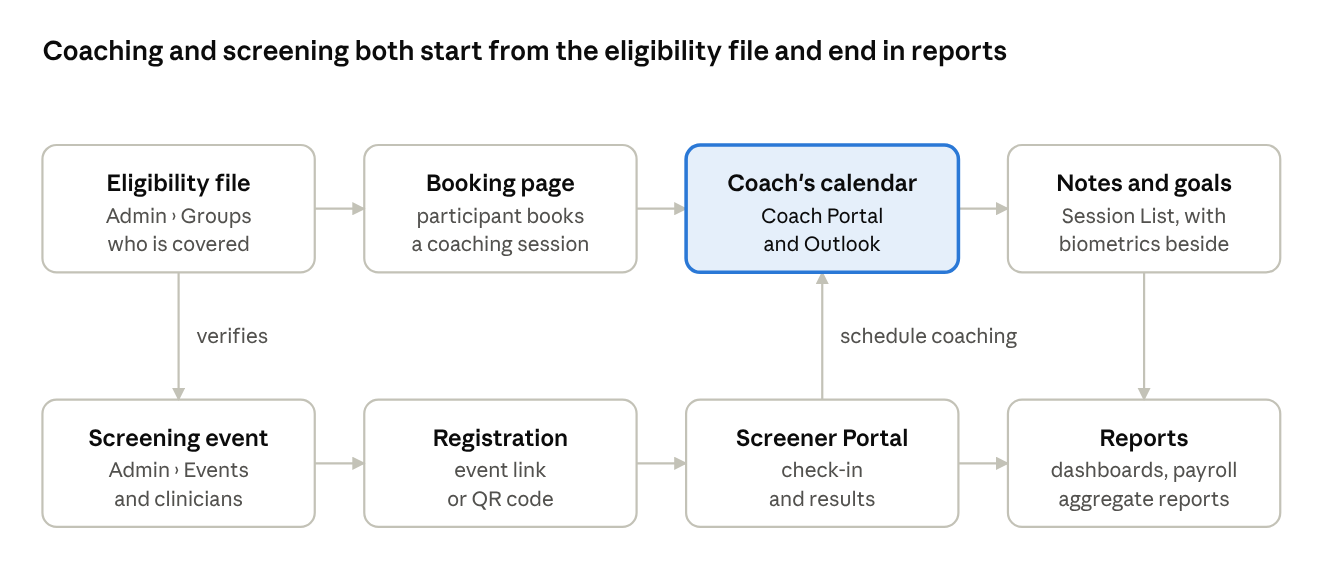
The eligibility file decides who can book and who is verified at events. A booked or screener-scheduled session lands on the coach's calendar and in Outlook; the coach's notes and every screening flow into the dashboards, payroll and reports.
Module 1 · Your calendar
- read your week at a glance
- find a client fast
- move or cancel a session
Reading the calendar
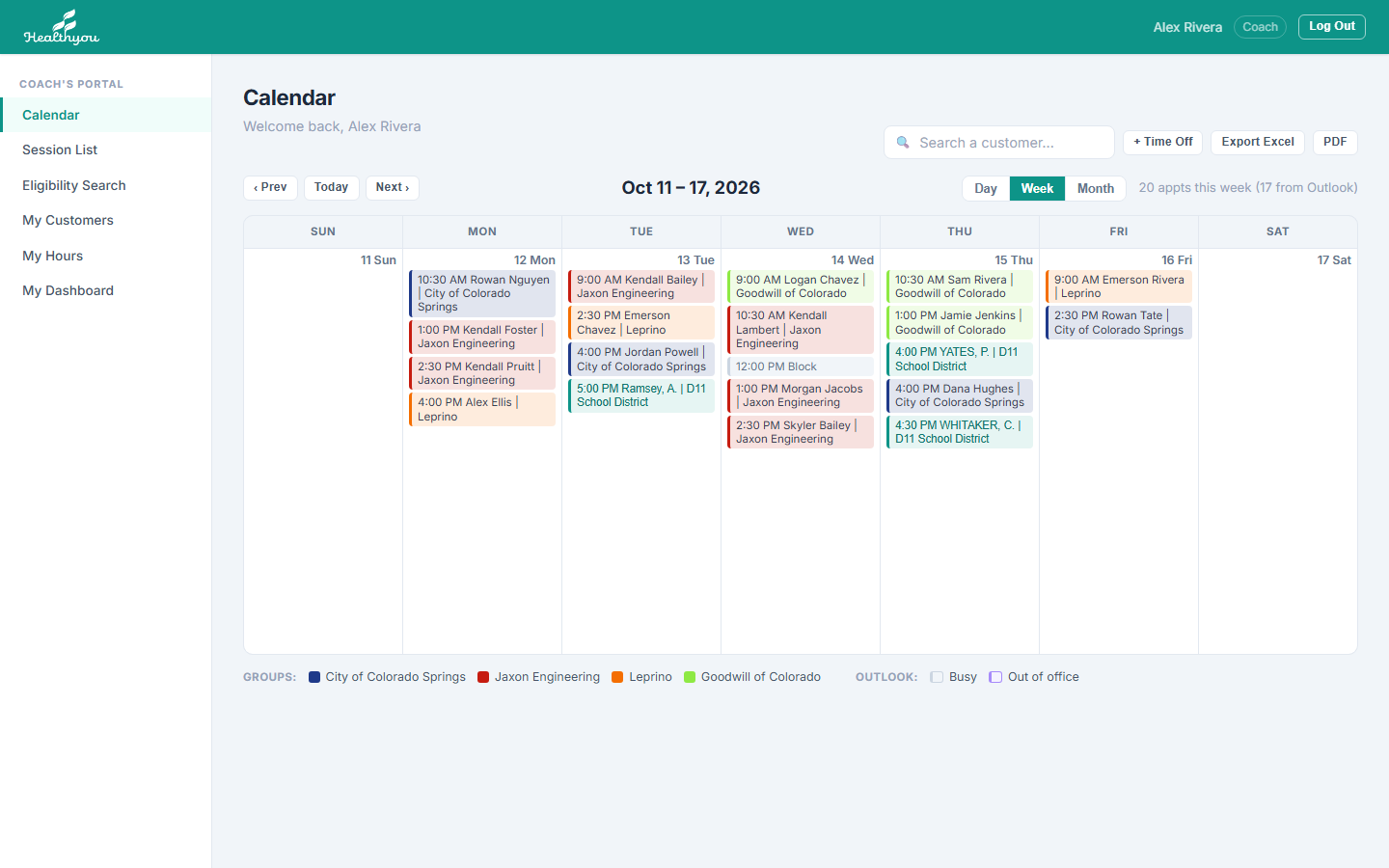
- Your sessions show with the group's color, and the legend under the calendar names each one. Appointments clients book in Microsoft Bookings come in as sessions on their own, within the hour.
- Day / Week / Month switches the view; Prev, Today and Next move by the view you are in.
- Time off shows in red.
Your booking link
Booking Link, under Calendar, has the page clients book a call on (app.myhealthyou.com/book/). Copy link to paste it into an email or text, or Download QR code for a flyer or slide.
Find a client
- Type any part of a name in Search a customer.
- Pick a result — the calendar jumps to that day.
Move or cancel a session
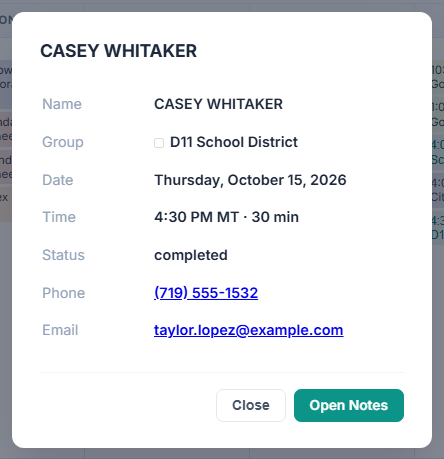
- Click the session.
- Edit → pick a new date → pick one of your open times → Move Session. The participant is emailed and your Outlook updates.
- Or Cancel Session — it comes out of your Outlook too.
Module 2 · Writing session notes
- record a session and its SMART goals
- use the client's biometrics while you coach
- book their next session
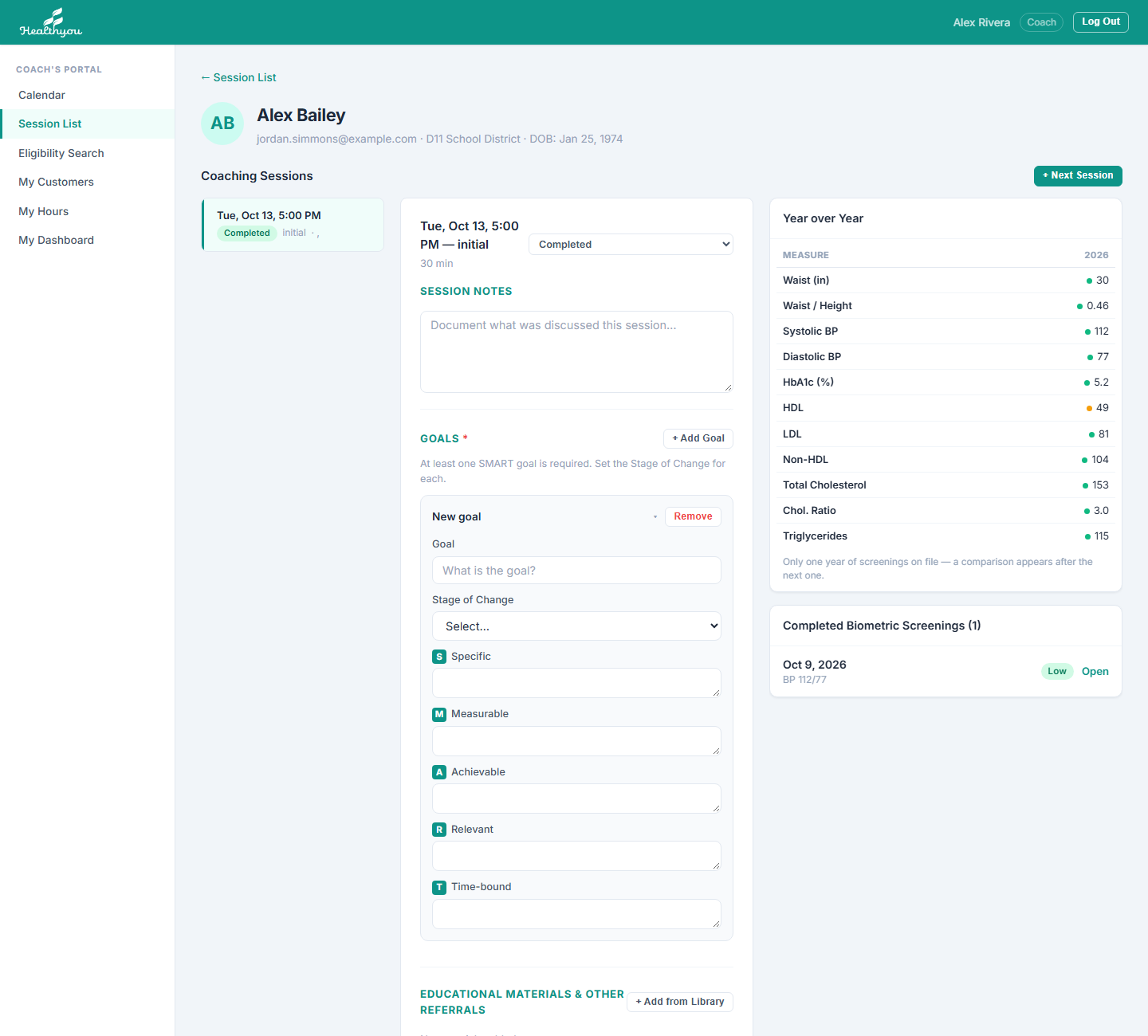
- Open the session (from the Calendar's Open Notes or the Session List's Open).
- Set the status — required before you can save.
- Write the Session Notes.
- Under Goals from the last session, mark each one Goal Met, Partially Met or Not Met. A goal not met is carried into this session for you.
- Add at least one goal: the goal, its Stage of Change, the SMART fields, and any Notes on it.
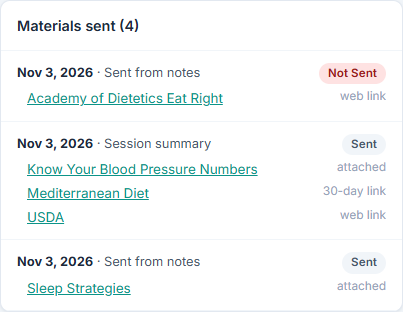
- Add Educational Materials with + Add from Library: Clinician Library handouts (search, or pick a topic or your favourites) and web links. Anything already sent to this client shows sent and the date. Email these to the participant sends them now, to the address they booked with.
- Save Notes. Saving as Completed emails the client what they committed to, their next call with a link to change it, a link to book another, and the materials you added, with handouts attached. No-Show emails them to rebook.
Sessions carried over from OnBase show their OnBase notes, and any OnBase admin notes beneath them.
Book Next Session (under the session status) books the client's next session from your open times. They get the same confirmation email as booking it themselves, with a Reschedule or Cancel link and their group's cancellation terms, and it goes into your Outlook.
Module 3 · Session List
- see every session by status
- filter and export
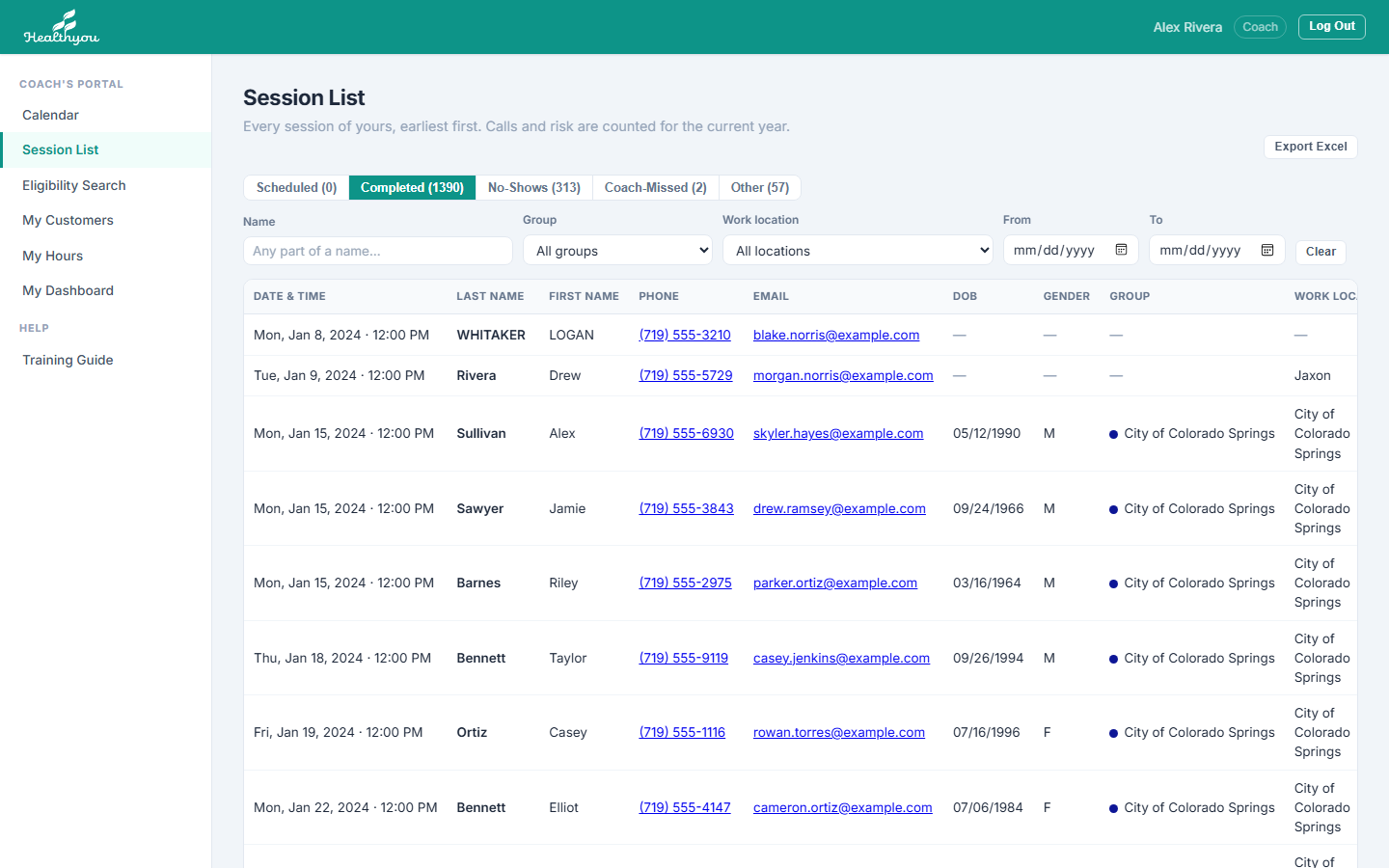
- Tabs: Scheduled (default), Completed, No-Shows, Coach-Missed, Other (cancelled and older "Other").
- Scheduled includes appointments booked in Microsoft Bookings. They come in hourly, and again whenever you open this page.
- Filter by name, group, work location and dates; Export Excel downloads what you see.
- Phone and email are the ones they booked with, else their preferred contact — click either to call or email.
- Open takes you straight to that session's notes.
Module 4 · Customers, eligibility & library
- find a client's contact details
- update the phone or email they booked with
- check someone's eligibility
- find a handout in the Clinician Library
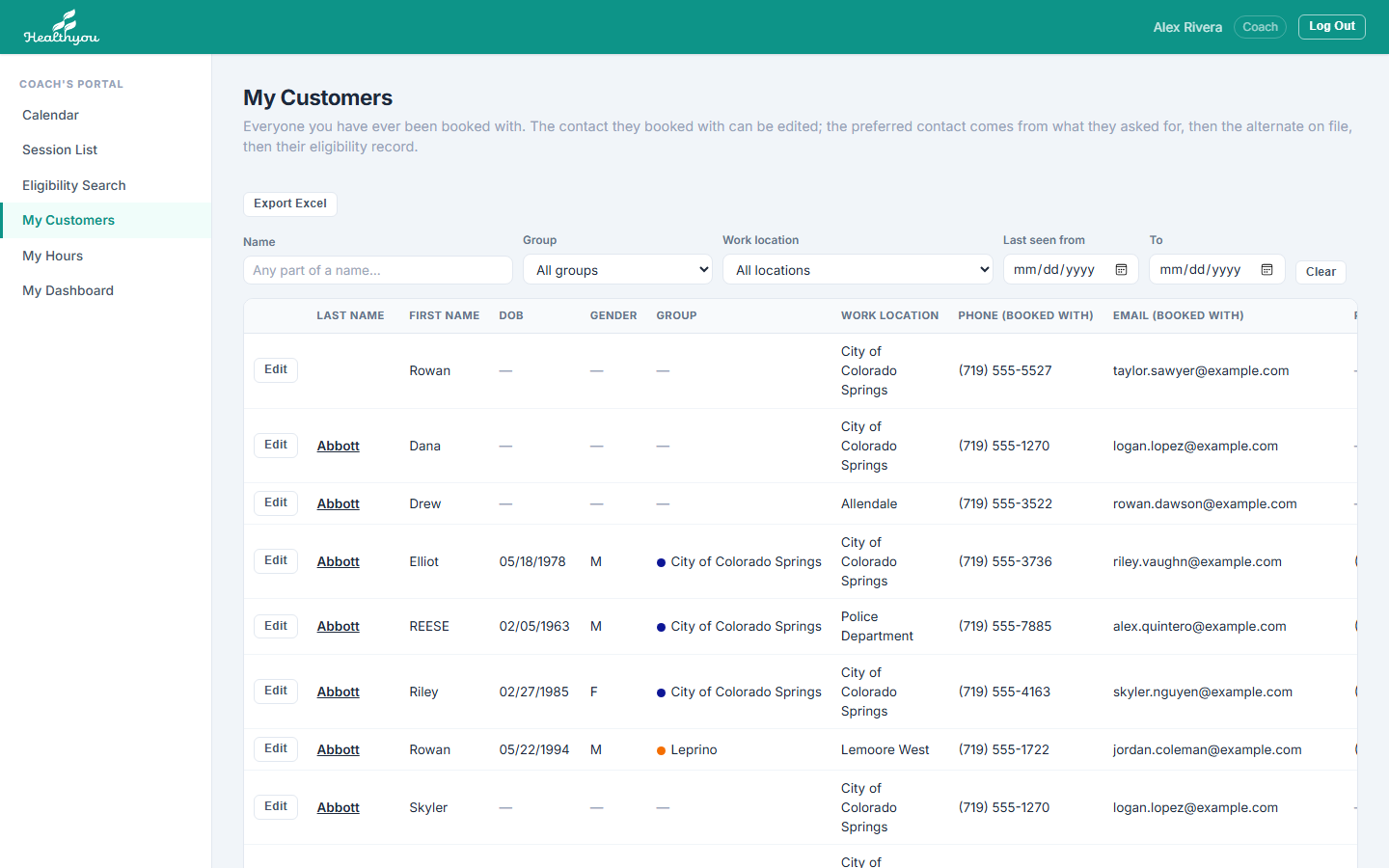
- Phone / Email (booked with) can be changed with Edit.
- Preferred phone and email are kept by the system (what they asked for, then the alternate, then eligibility) — a small label says which.
- Click a last name to open their sessions.
Eligibility Search
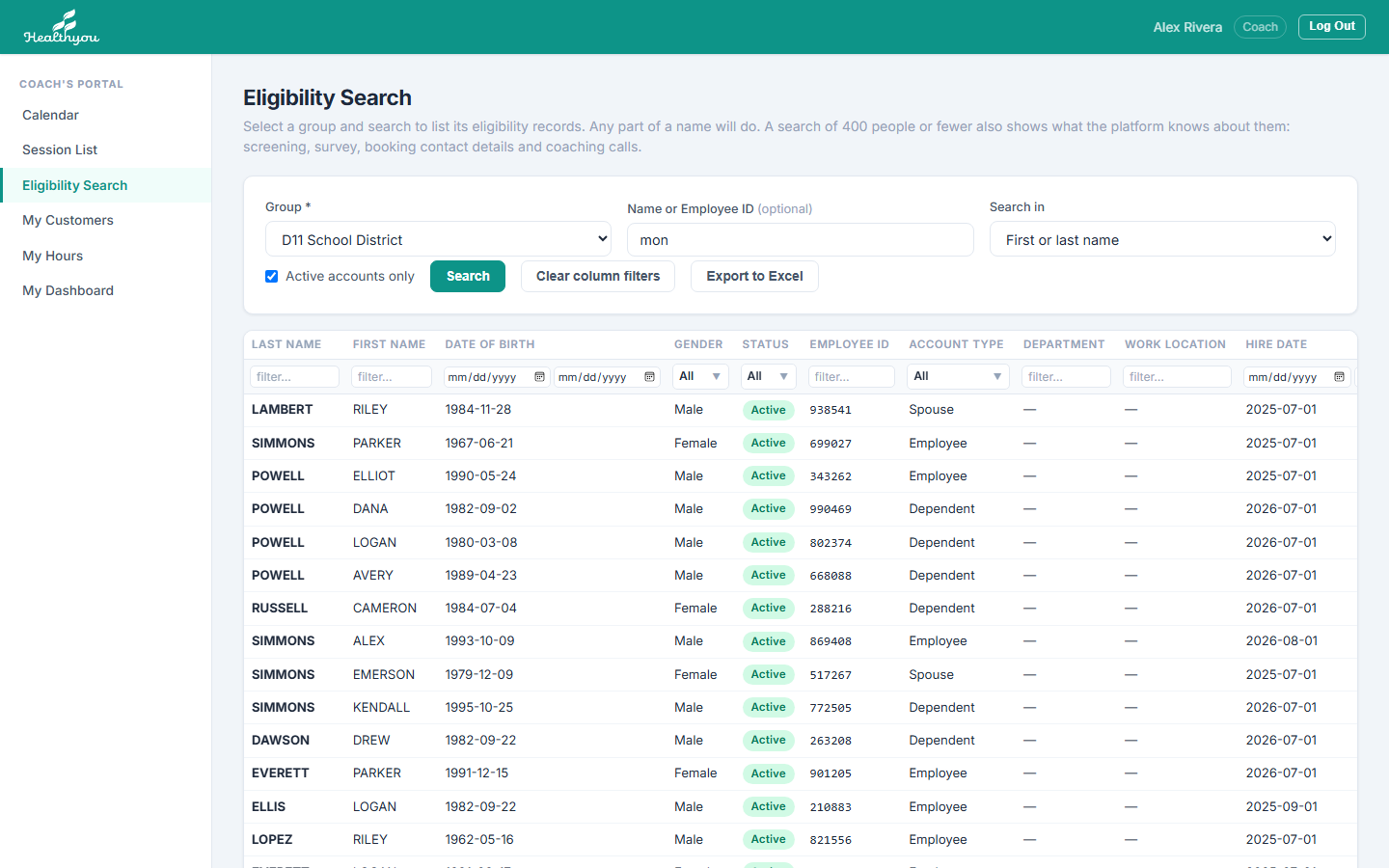
- Choose the Group.
- Type any part of a name (or an employee ID) and click Search.
- Click a person to open their HealthYou record.
Clinician Library
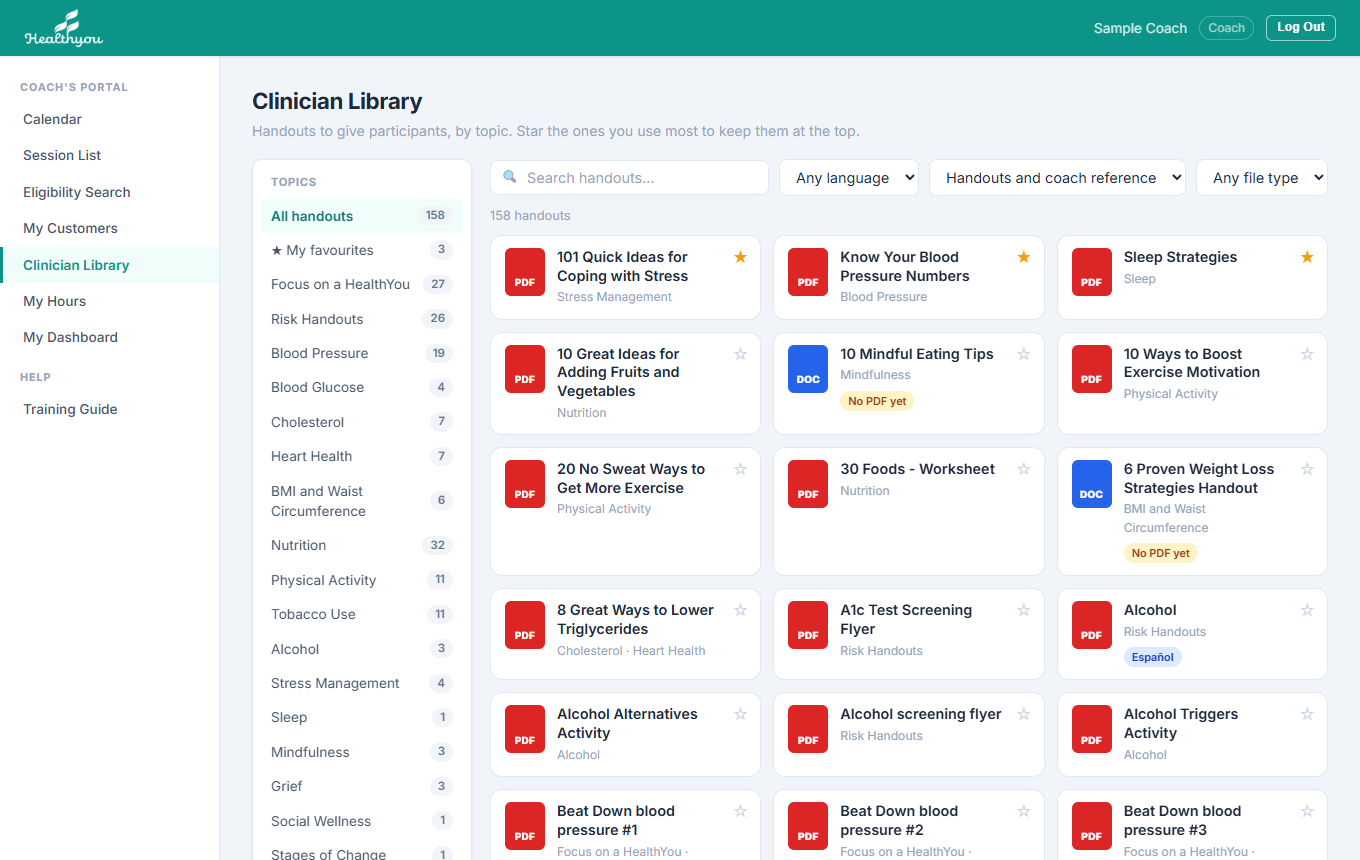
- Pick a topic on the left, or search. Filters narrow it to Spanish, participant handouts or one file type.
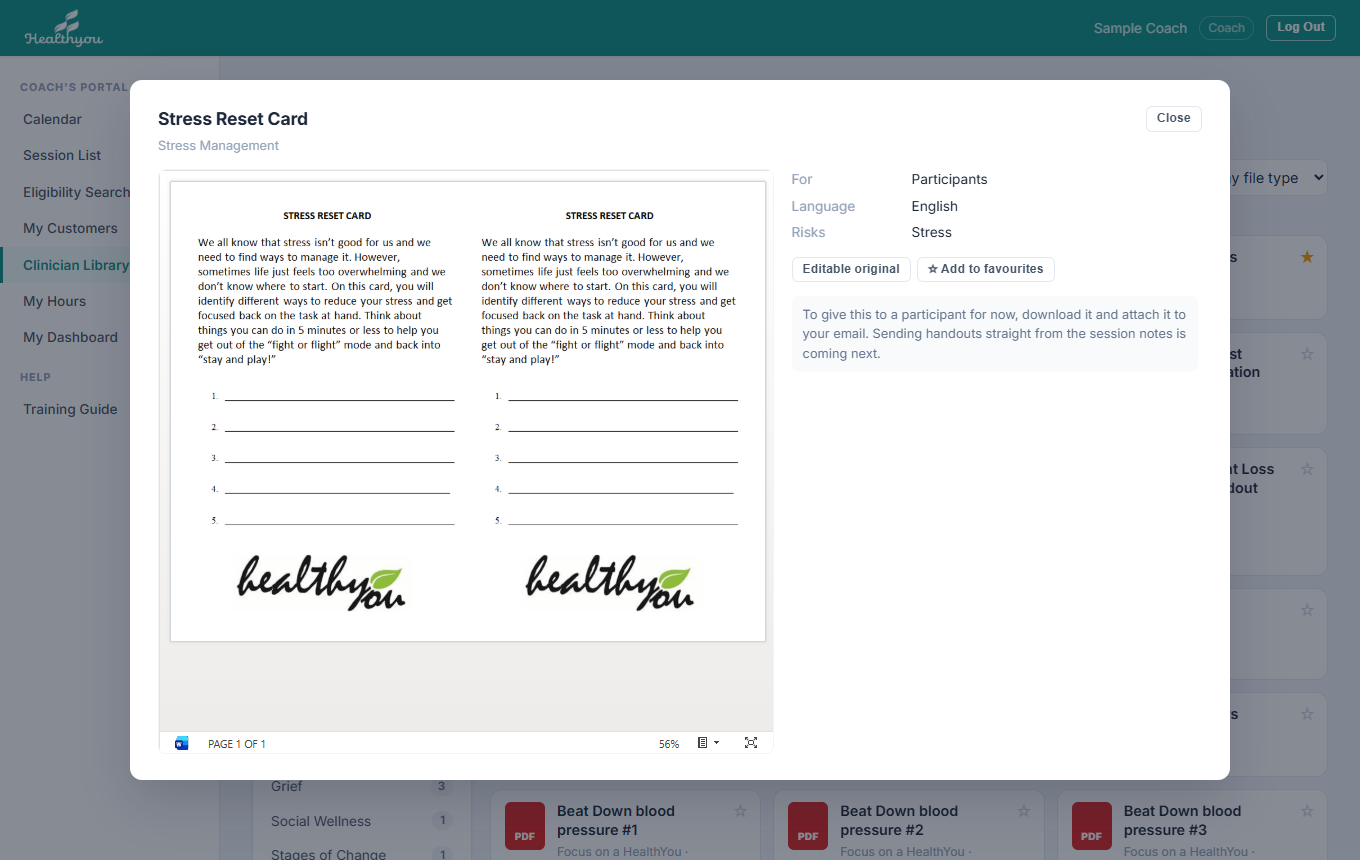
- Click a handout to read it, then Download or Open to print. Word and PowerPoint files open in Microsoft's Office viewer inside the page (it can take a few seconds). A Spanish handout links to its English version, and the other way round.
- Tap ☆ to add a handout to My favourites; your favourites stay at the top.
- Coach reference items are for you, not participants. A handout marked for one client (such as the Colorado Springs park maps) is only for that client's participants.
- To give a handout to a participant, add it in the session notes with + Add from Library. It is attached to their session summary email when you save the session as Completed, or straight away with Email these to the participant. It is then listed under Materials sent on their page (Module 2).
Module 5 · Hours & time off
- keep your bookable hours right
- block time off
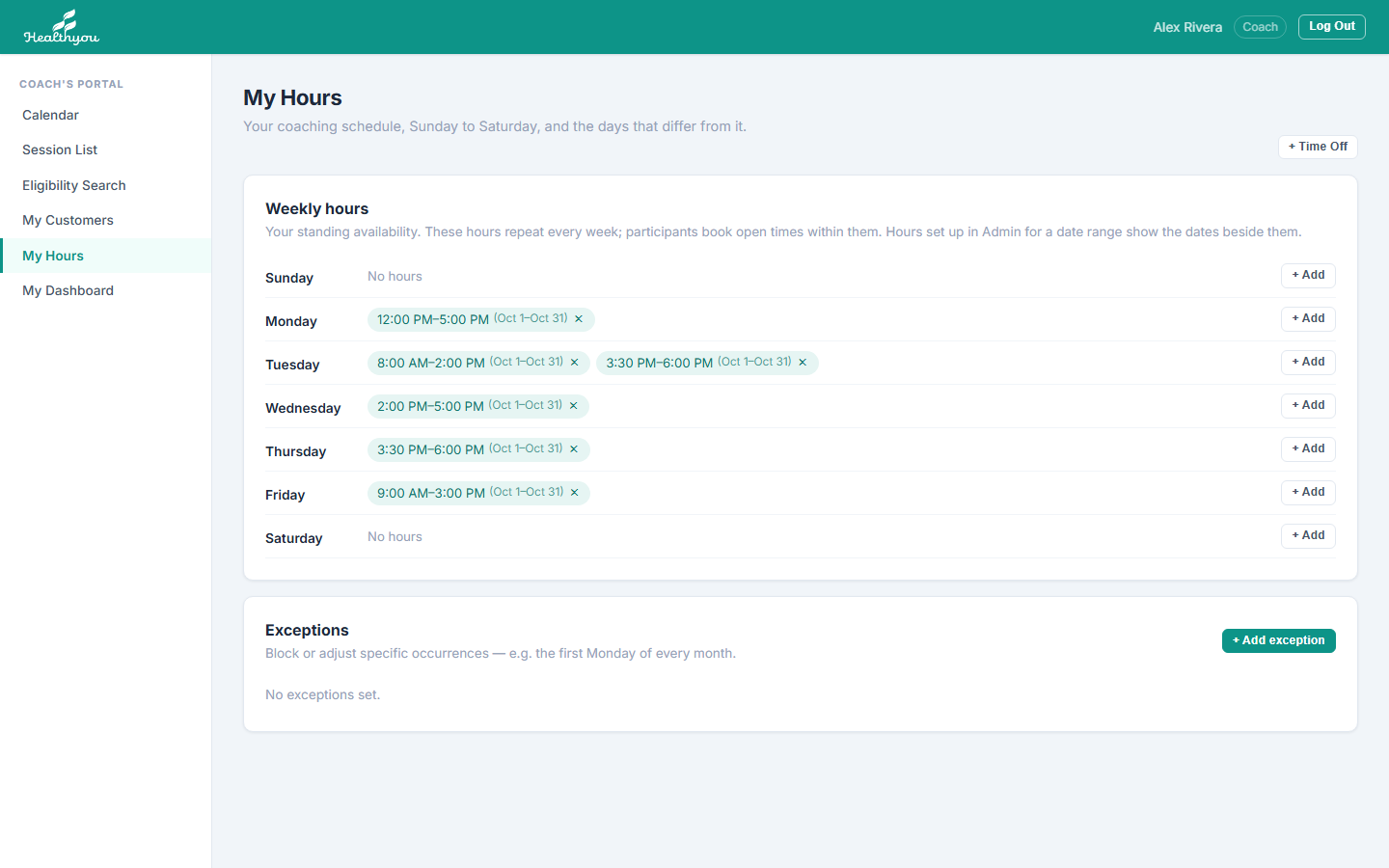
- + Add on a day adds a block of hours; × removes one.
- Participants can only book inside these hours — never over a session, an Outlook meeting or your time off.
Block time off
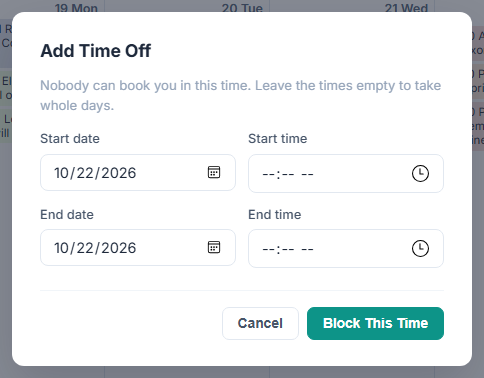
- + Time Off (here or on the Calendar).
- Start and end date; add times to take part of a day, leave them empty for whole days.
- Block This Time.
Module 6 · My Dashboard & pay
- check your pay for a pay period
- read your session and progress numbers
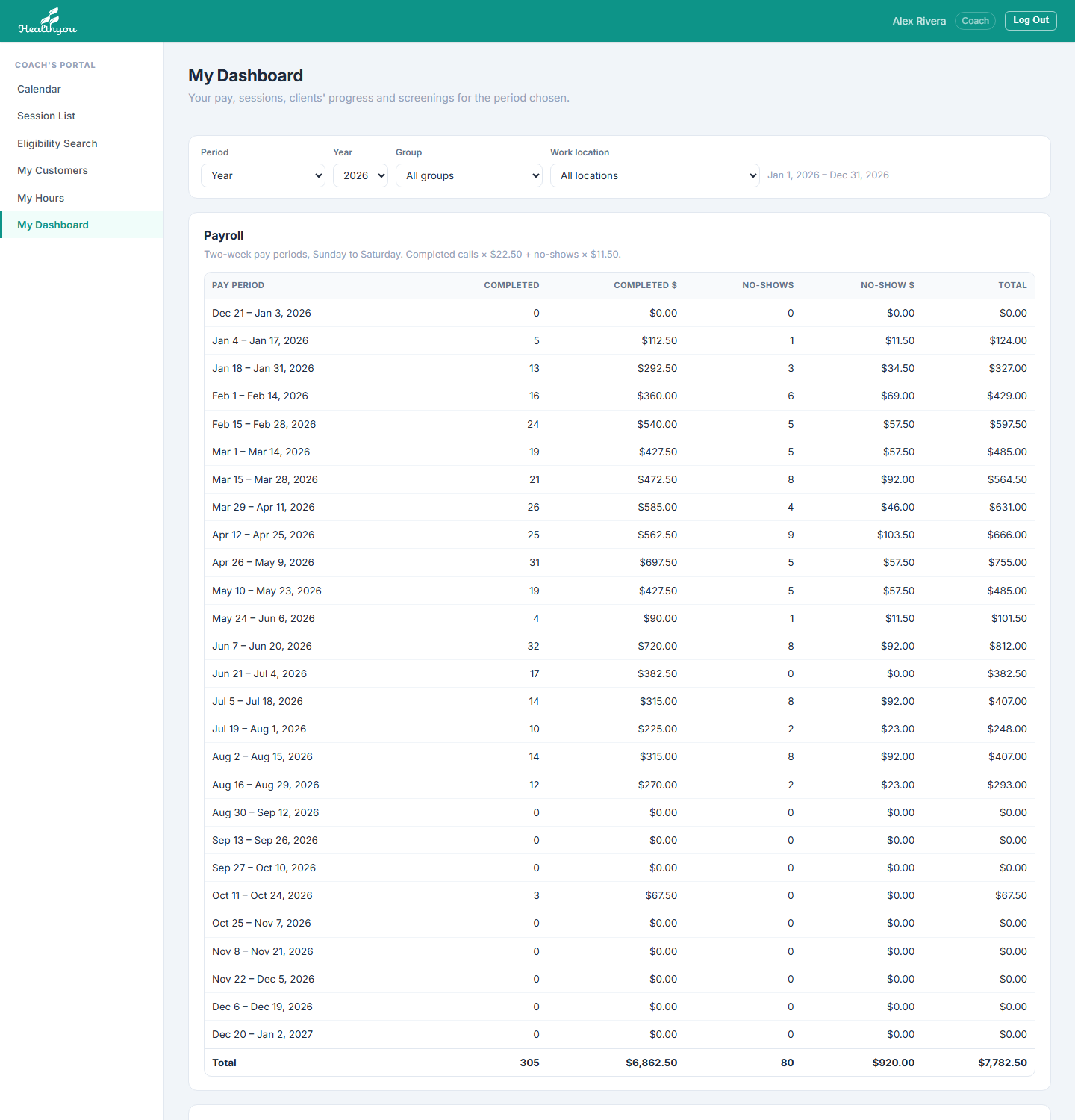
| Panel | What it shows |
|---|---|
| Payroll | Two-week pay periods (Sunday–Saturday, from Oct 11, 2026): completed × your rate + no-shows × your no-show rate. |
| Session Counts | Each status as a count and a share of everything scheduled, and by month. |
| Health Coaching Progress | Goals by Stage of Change. |
| Screening Counts | Events you were assigned to or screened at. |
Module 1 · Opening your event
- sign in on event day
- check people in and add walk-ins
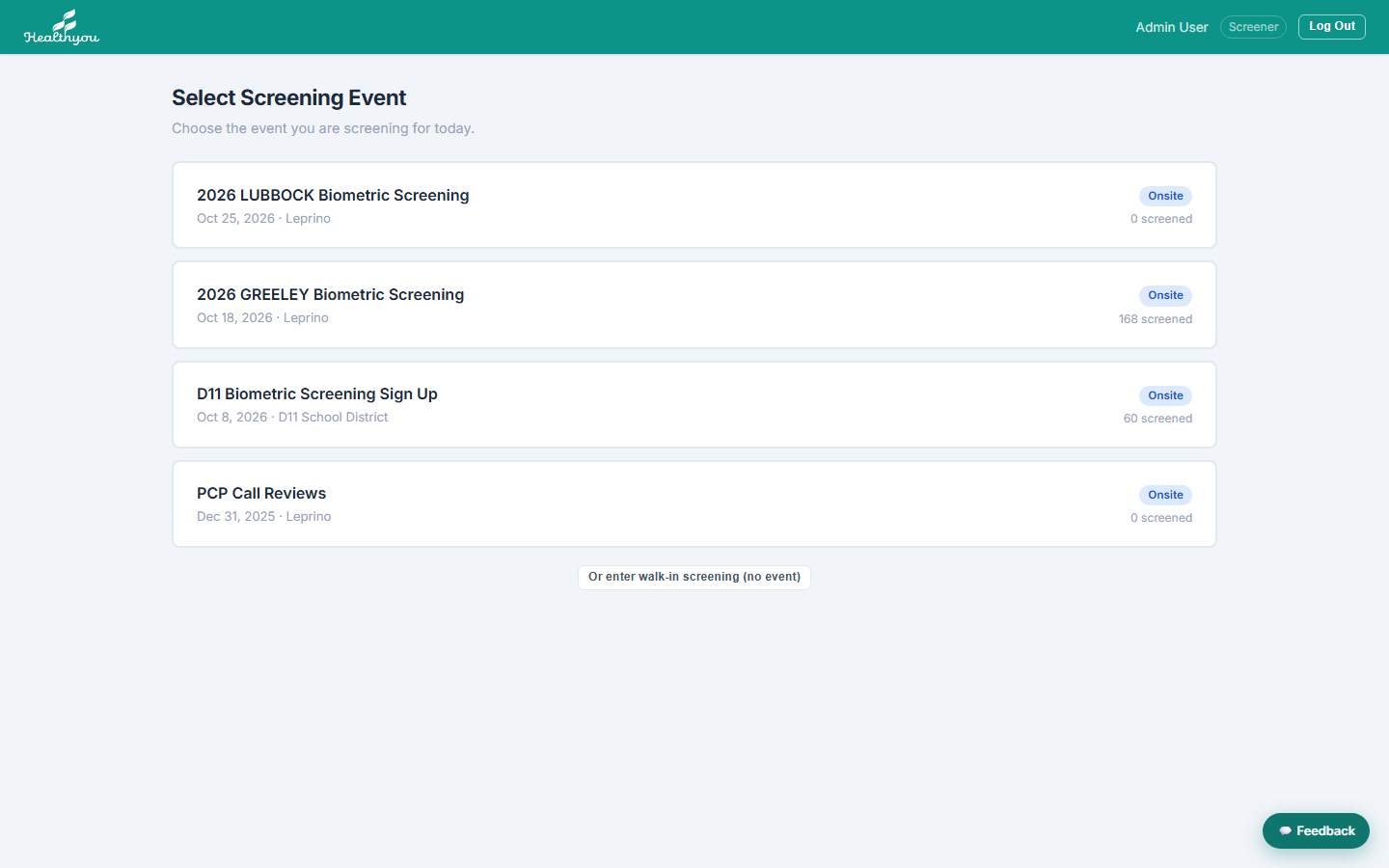
- Open the sign-in link emailed the morning of the event (it lasts 30 minutes).
- Pick your event under You are assigned to.
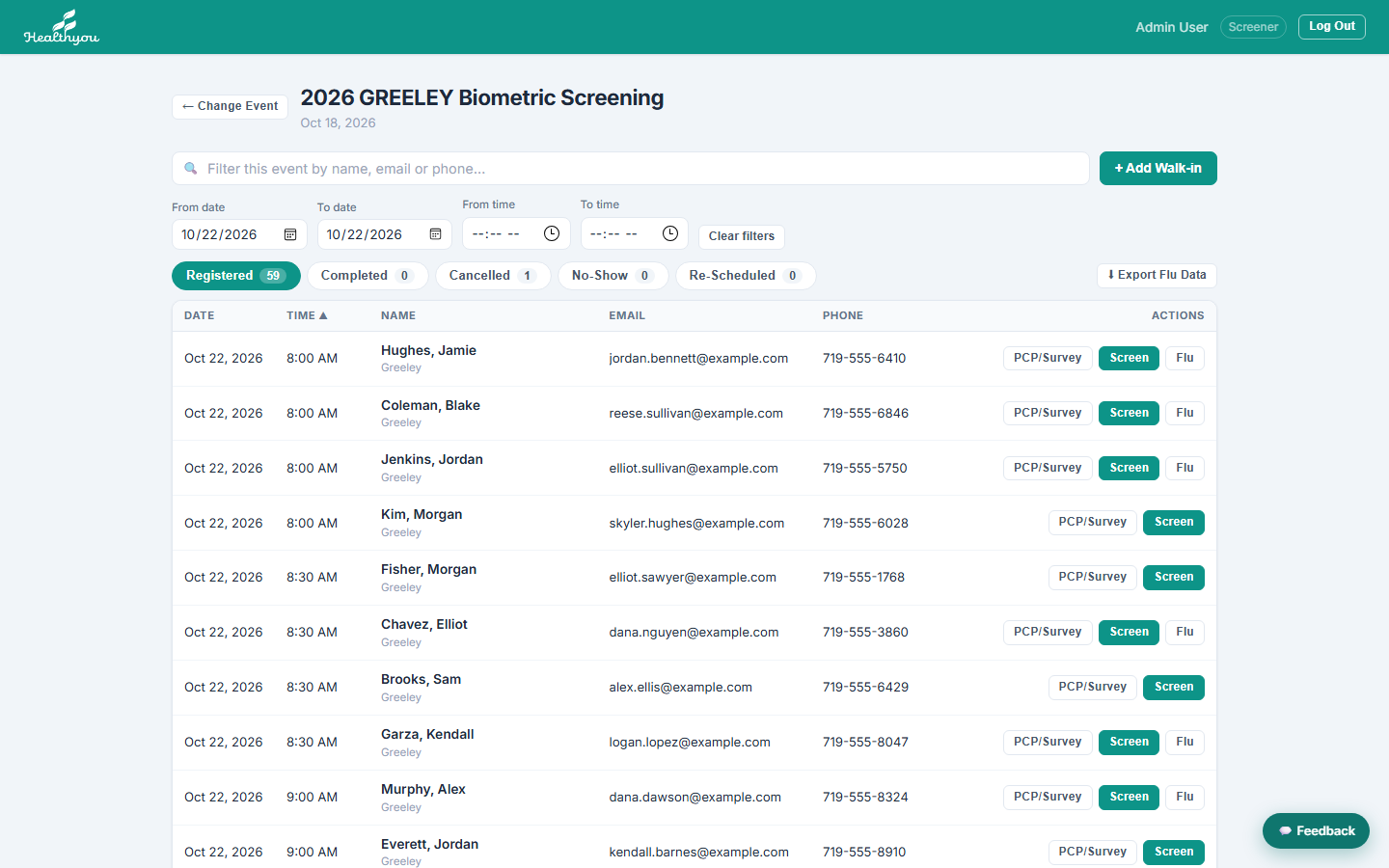
- Screen opens a person's results form.
- + Add Walk-in adds someone who didn't register (Screening, Flu or Both).
- PCP/Survey and Flu open those records.
Module 2 · Entering results
- enter a full screening
- pull results from the instruments
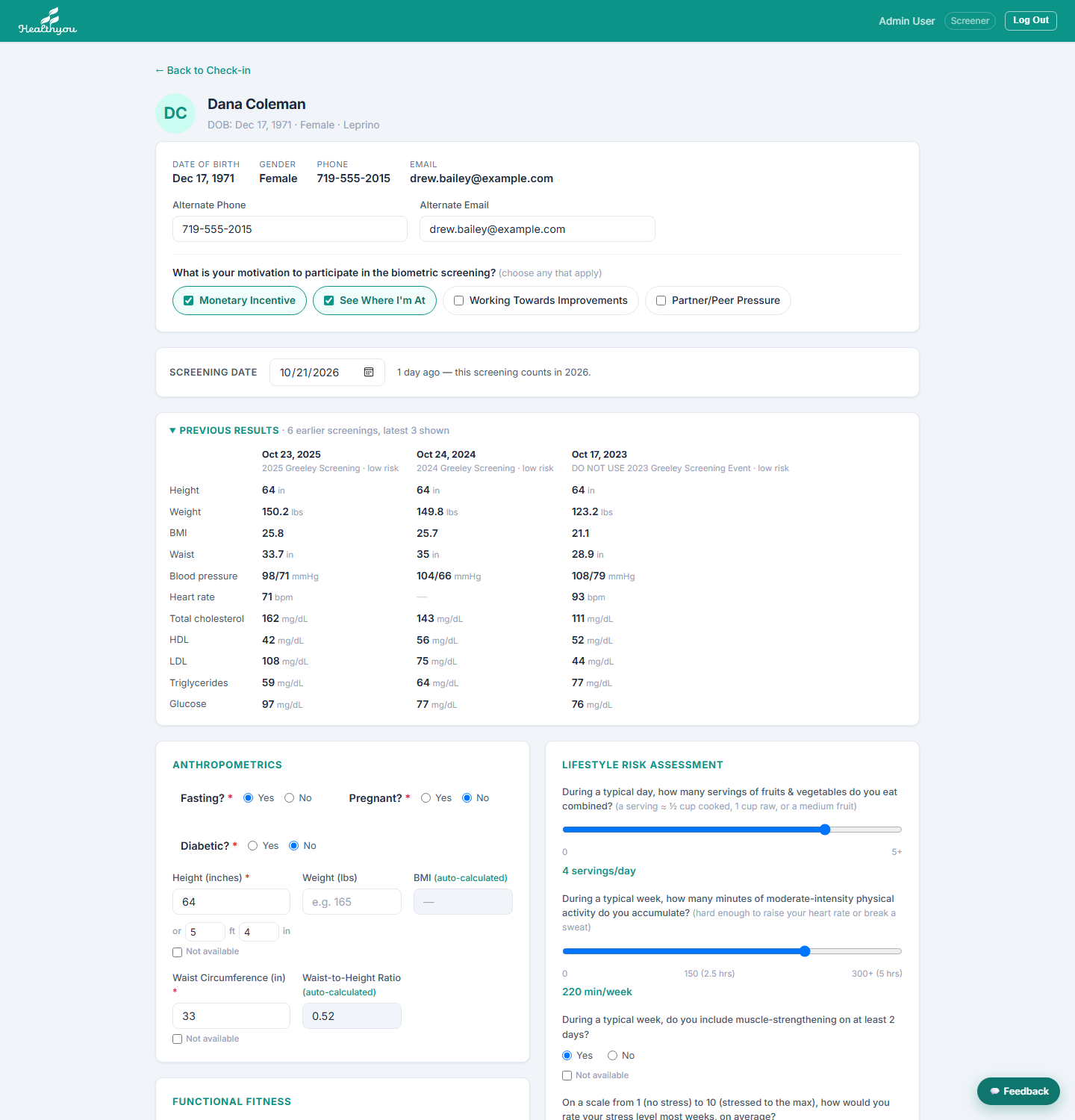
- Fasting, Pregnant and Diabetic answers (pregnancy limits what is measured).
- Height, weight, waist and grip strength — BMI and waist-to-height are worked out for you.
- Blood pressure: type it, or Pair BP Cuff.
- Cholesterol: type it, or Pair CardioChek → Fill In These Results. Then glucose and HbA1c.
- Lifestyle questions, notes, and + Import Document for PCP results.
- Save & Review Results.
Module 3 · Results & booking coaching
- walk someone through their results
- handle an emergent risk
- book their first coaching session before they leave
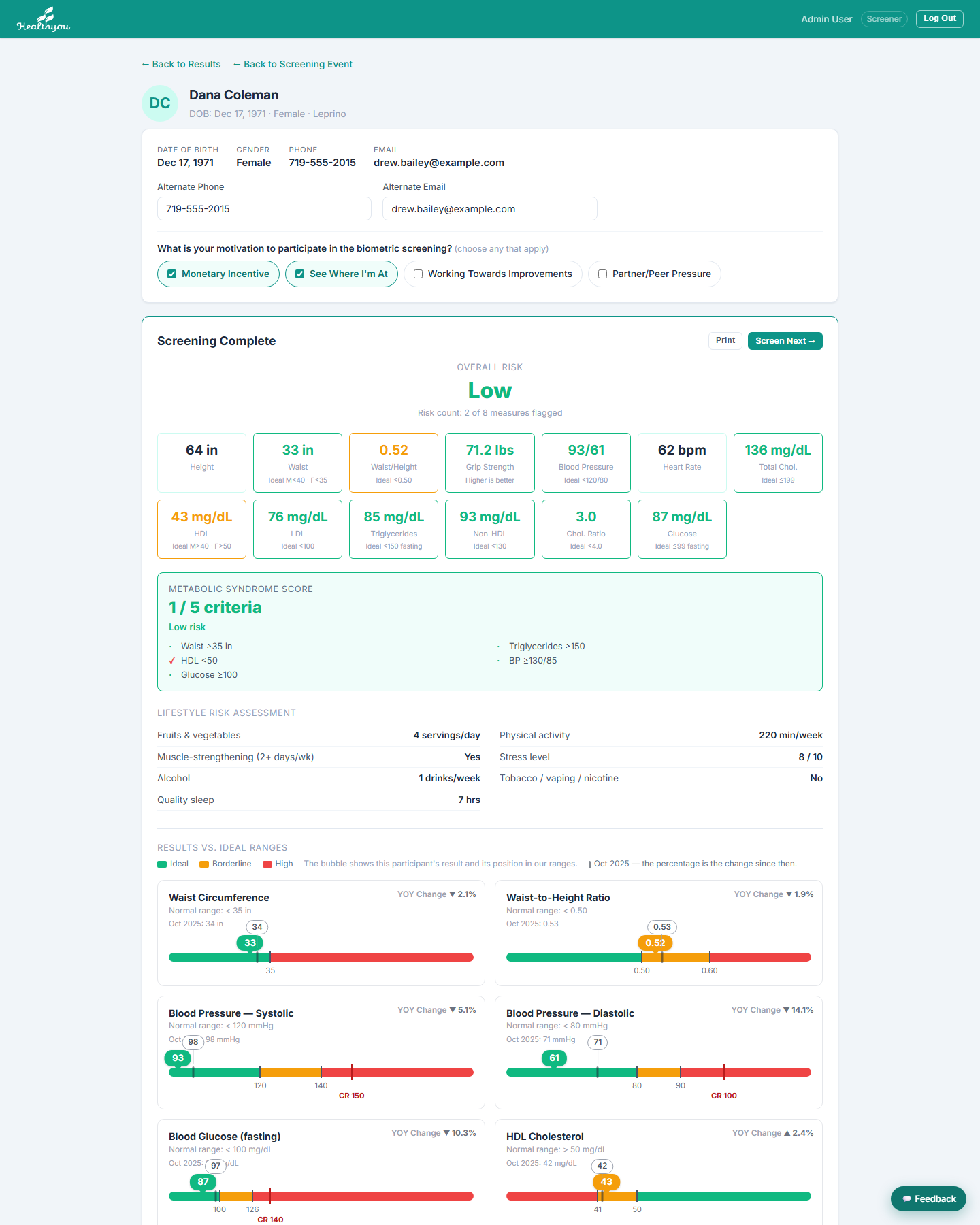
A critical value or metabolic syndrome opens the Emergent Risk form: ask whether they'd like a provider to follow up and their best times, then Acknowledge & Email Form.
Book coaching on the spot
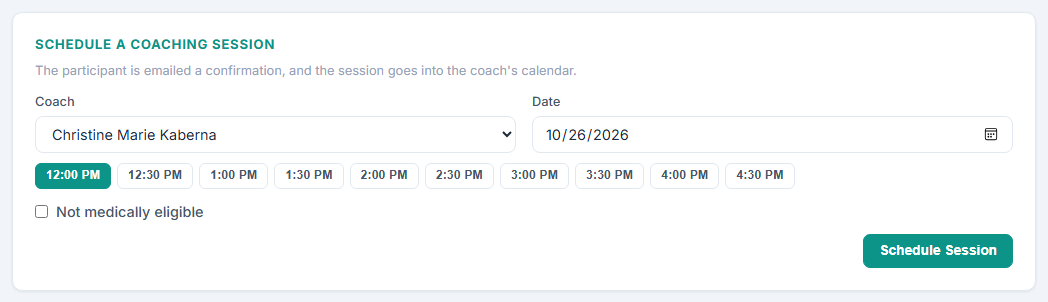
- Pick a Coach and a Date.
- Pick an open time.
- Tick Not medically eligible if that applies — they are still coached; the session is flagged.
- Schedule Session. The participant is emailed and it goes into the coach's calendar.
Module 1 · Finding your way
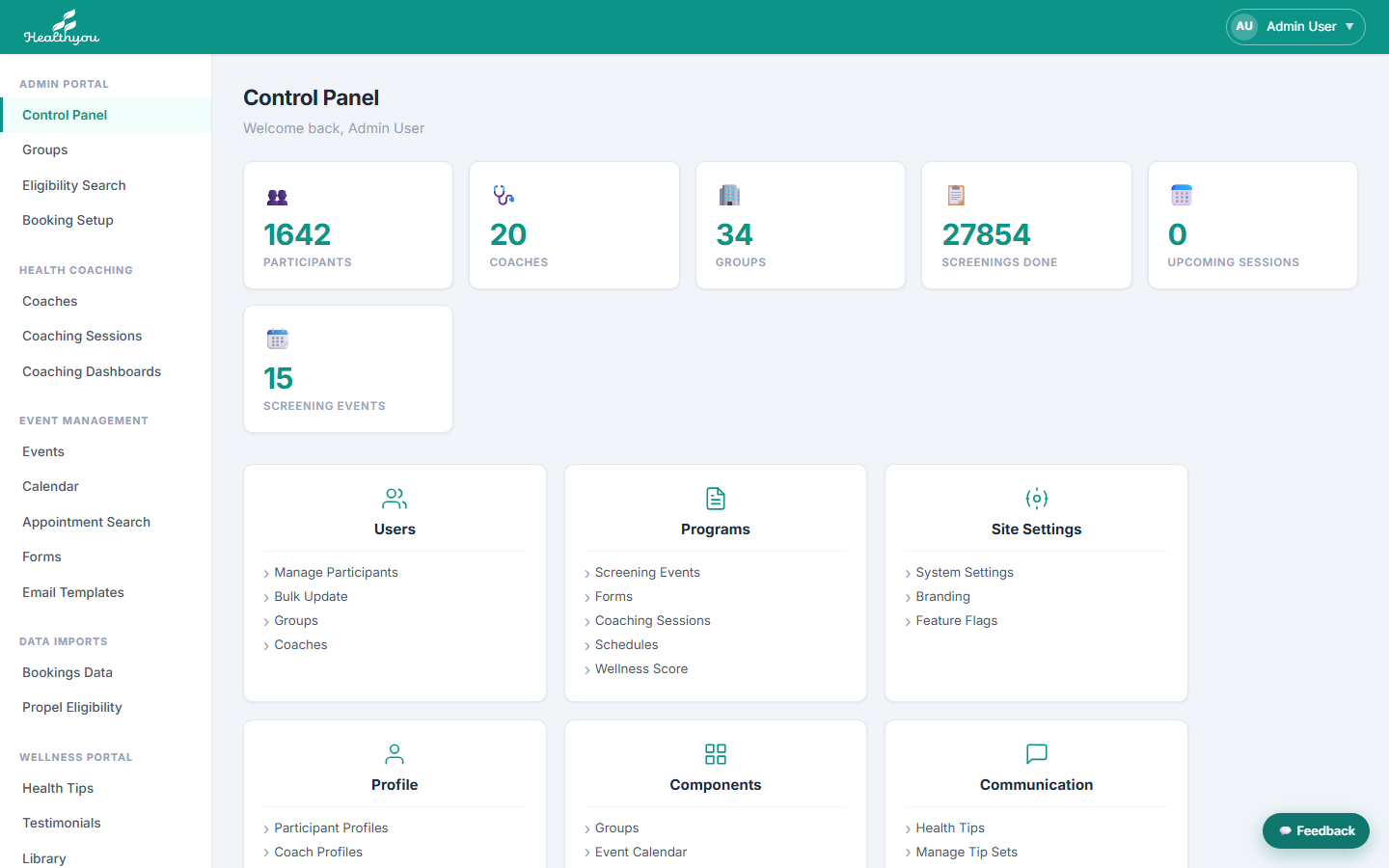
The left menu is grouped: Admin Portal (groups, eligibility, booking setup), Health Coaching (coaches, sessions, dashboards), Event Management, Data Imports, Wellness Portal content, Reports and settings. Your name at the top right holds Release Notes, Bugs & Changes, this Training Guide and Log Out.
Module 2 · Groups, eligibility & booking
- set up a group
- look someone up on eligibility
- create a booking link and QR code
Groups
+ Add Group takes the name, Group ID, contacts, PEPM rate and a color. The color marks the group's appointments on every coach's calendar — give each group its own.
Eligibility
Choose a group, type any part of a name and Search. Click a person for their record: screenings, PCP waivers and coaching appointments.
Booking Setup
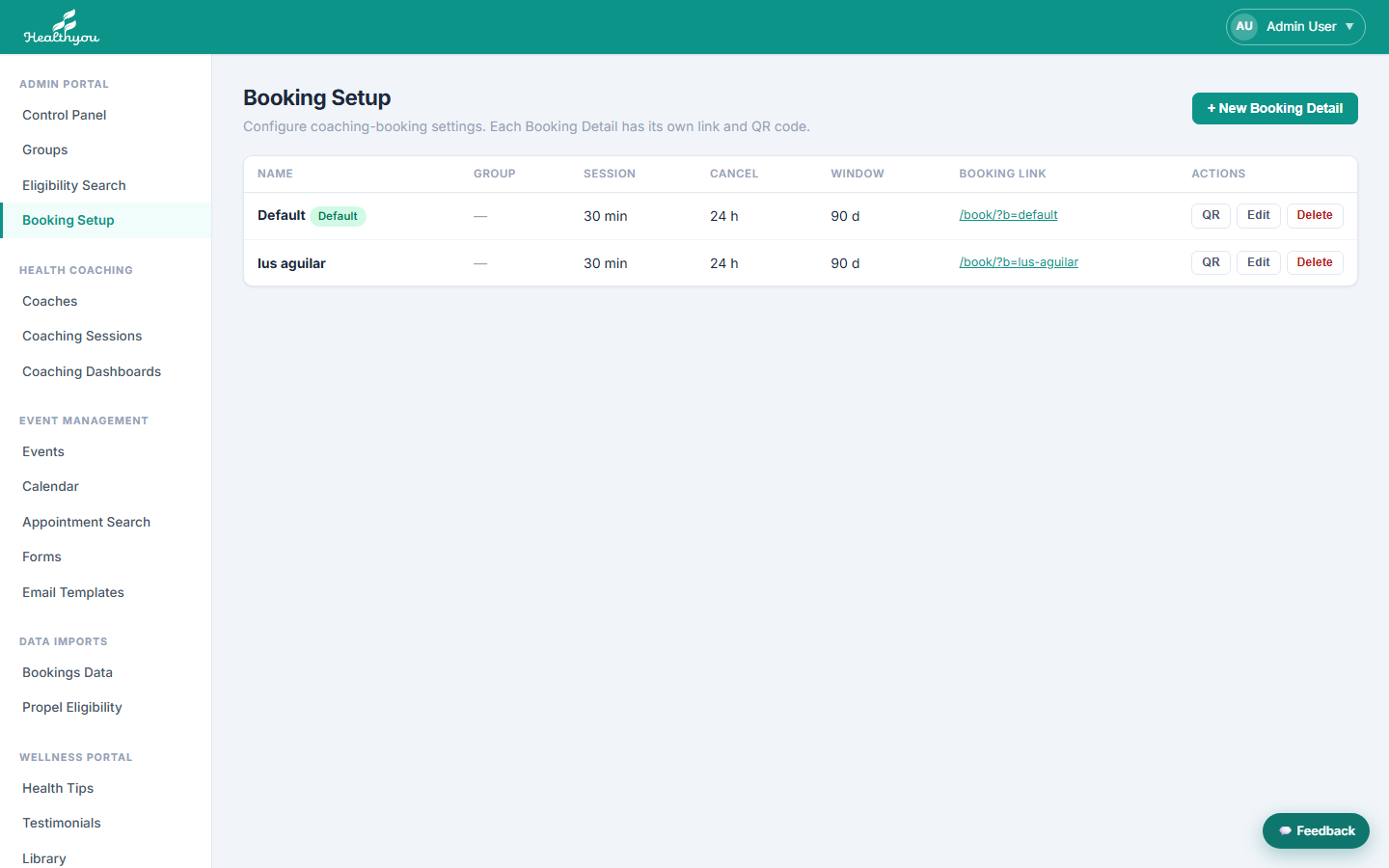
- + New Booking Detail: name, group, session length, cancellation cutoff, how far ahead people can book, support phone and email.
- Share its link
/book/?b=…or download its QR for flyers.
Module 3 · Setting up a coach
- add a coach and their groups
- connect their Outlook calendar
- set their hours and pay rates
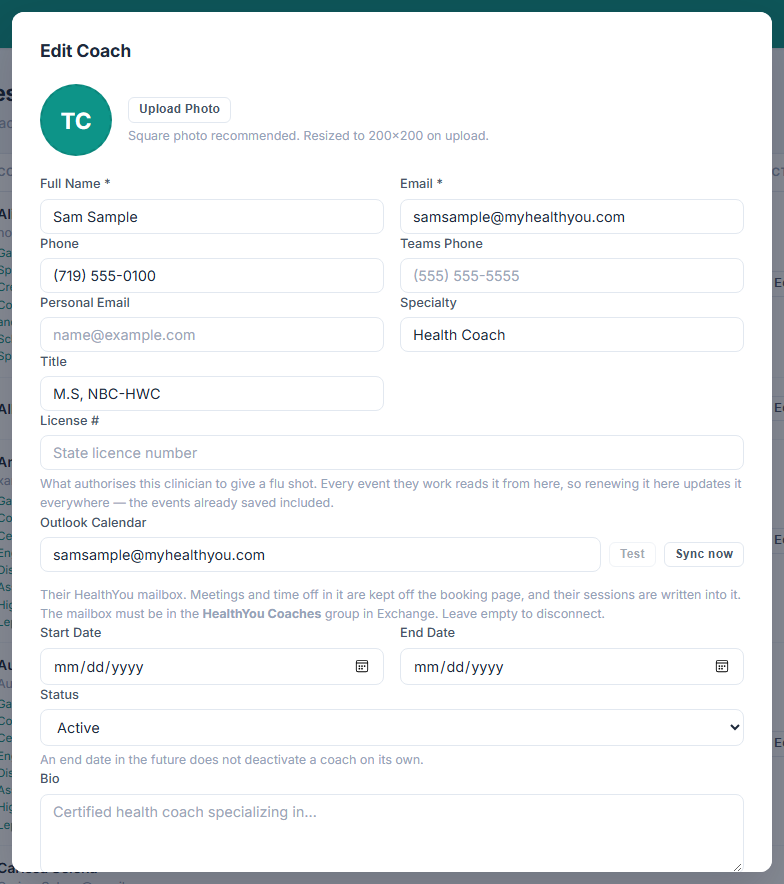
- + Add Coach: name, email, phone, title, groups (or All groups), bio for participants, internal notes, and Rates. A welcome email goes out on save.
- Outlook Calendar: enter their
@myhealthyou.commailbox, click Test, then Sync now. - Schedule (on the coach's row): move to the month, + Add hours on each weekday.
Module 4 · Sessions & dashboards
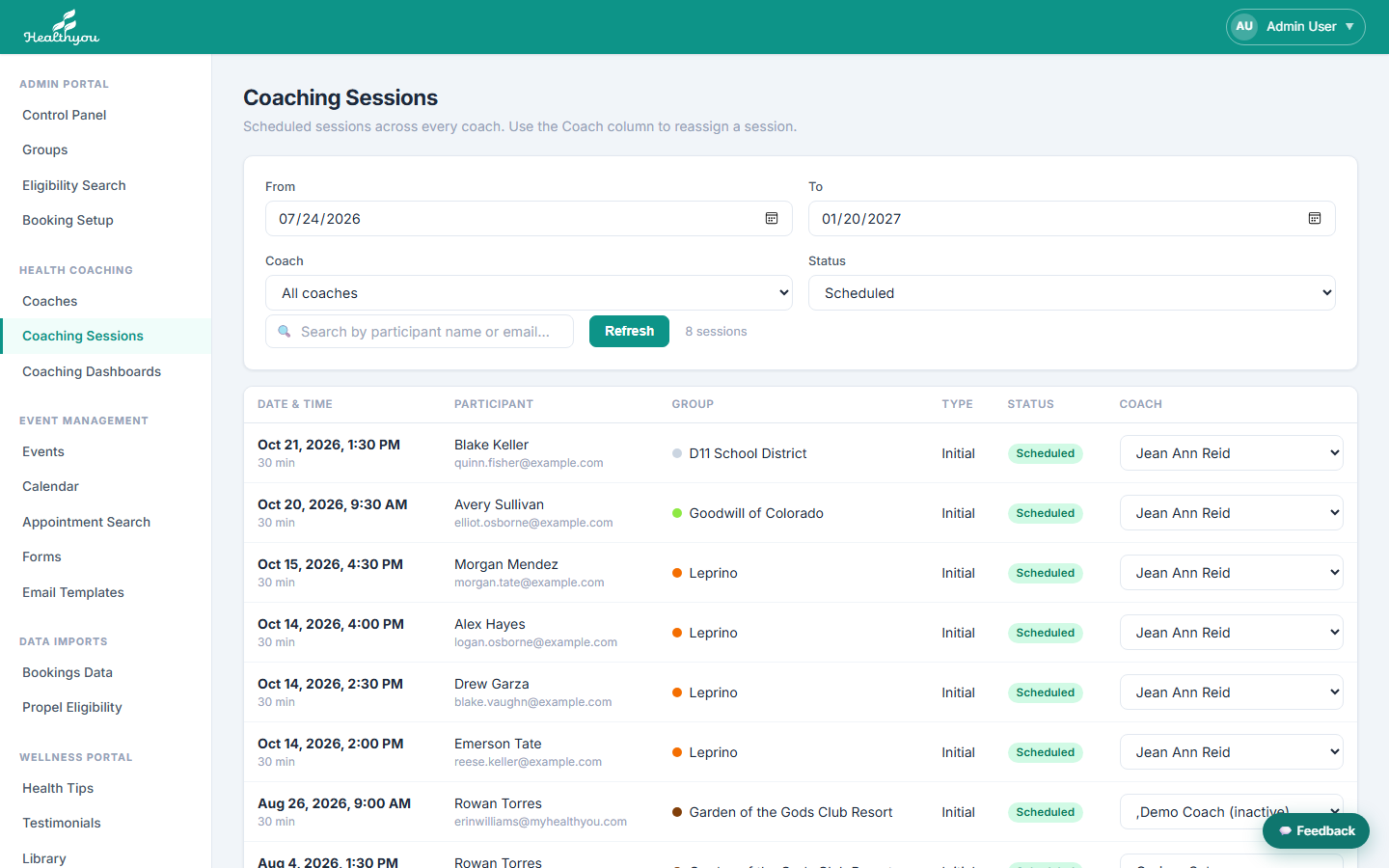
- Filter by dates, coach and status; search by name or email.
- Reassign a session by picking another coach in its row — it saves at once and moves between the coaches' Outlook calendars.
- Coaching Dashboards report completion, no-shows, goals and stage of change across coaches.
- Clinician Library keeps the handouts coaches send participants. Sort it by Most sent to see which are used; see the Clinician Library guide.
Module 5 · Running a screening event
- create an event and its locations
- share the registration link
- send screeners their sign-in links
- follow up on the day
- + New Event: name, type, group, dates, eligibility check, flu shots → Create Event.
- Locations: add each site; set hours, appointment length and capacity → Apply to Time Table → Save Schedule Setup.
- Clinicians: add coaches or visiting clinicians → Save Clinicians.
- Forms and Email: attach forms and pick the reminder emails.
- Registration Link: copy it or download the QR code for the group.
- On the morning of the event: Send Sign-In Links to All.
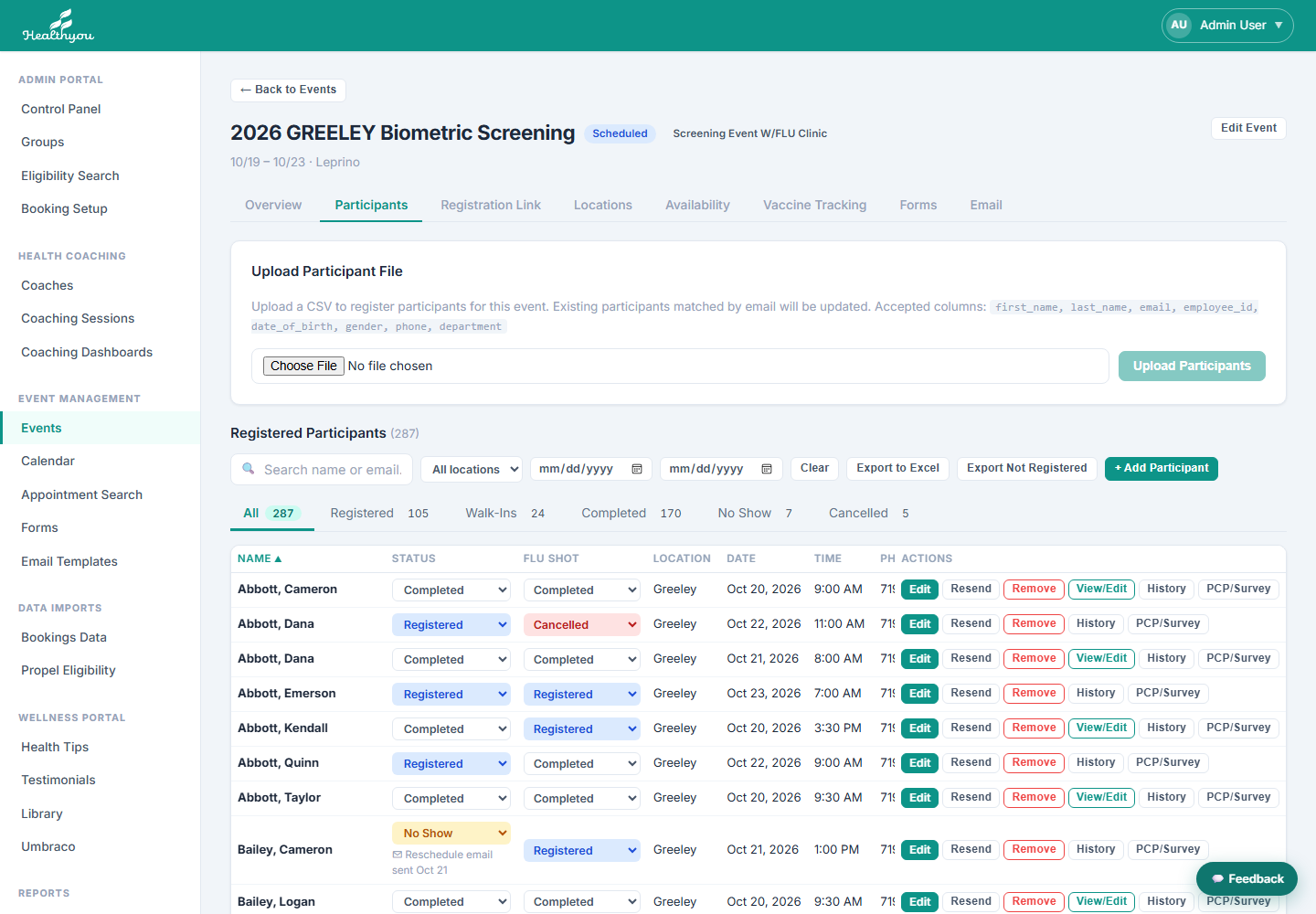
- Export Not Registered lists eligible people at that location who haven't booked — for reminders.
- Marking someone a no-show emails them a link to rebook.
Counting completed screenings
- Completed counts completed screenings, PCP Reviews included. A flu-only visit is not a screening: it is counted under Flu Shots instead.
- PCP lists the PCP Reviews; Flu Shots lists everyone whose flu shot was given. Like Walk-Ins, these people also appear under their status.
- Screening Status and Flu Shot Status show N/A for the half of the visit someone did not come for: no screening on a flu-only visit, no flu shot on a screening-only visit or a PCP Review.
- The Overview's Screened includes completed PCP Reviews.
A PCP form from someone's doctor
- Open the event for their work location > Participants > + Add Participant.
- Find them on eligibility, then set Booking type to PCP Review. Date and time grey out: a PCP Review has neither.
- Add Participant. They are listed with a PCP Review label and an Enter PCP button.
- Enter PCP opens the results form. Nothing on it is required: enter what the form has, then Save & Close (or Save & Review Results). Saving completes the PCP Review.
- Part done? Come back with Edit PCP on their row: it opens what was saved, so the survey can be added another day. Survey answers nobody touched are left blank.
Module 6 · Users, imports & reports
| Area | Use it to |
|---|---|
| User Management | Add staff; choose their role, menu sections and portal access (Health Coach Portal, Screener Portal). |
| Bookings Data | Import the Microsoft Bookings .tsv exports: drag in → Preview → Import. |
| Propel Eligibility | The weekly City of Colorado Springs roster: preview, send, history. |
| Forms · Email Templates | Build event registration forms and the emails events send. |
| Library · Health Tips · Testimonials | Participant content; library items are what coaches attach to notes. |
| Reports · Aggregate Reports | Population, biometrics, coaching and events; Create a PowerPoint for a group review. |
| Email Log | Every email sent and whether it was delivered. |
Module 7 · Monthly checklist
- Enter every coach's hours for next month (Coaches › Schedule) before the month ends.
- Check each coach's Outlook shows Connected; new coaches added to the HealthYou Coaches group.
- Import the latest Bookings exports (Data Imports › Bookings Data).
- Give any new group its own calendar color (Groups).
- Review Coaching Dashboards for no-show and coach-missed rates.
- Check Email Log for failed emails.
Booking coaching (what participants see)
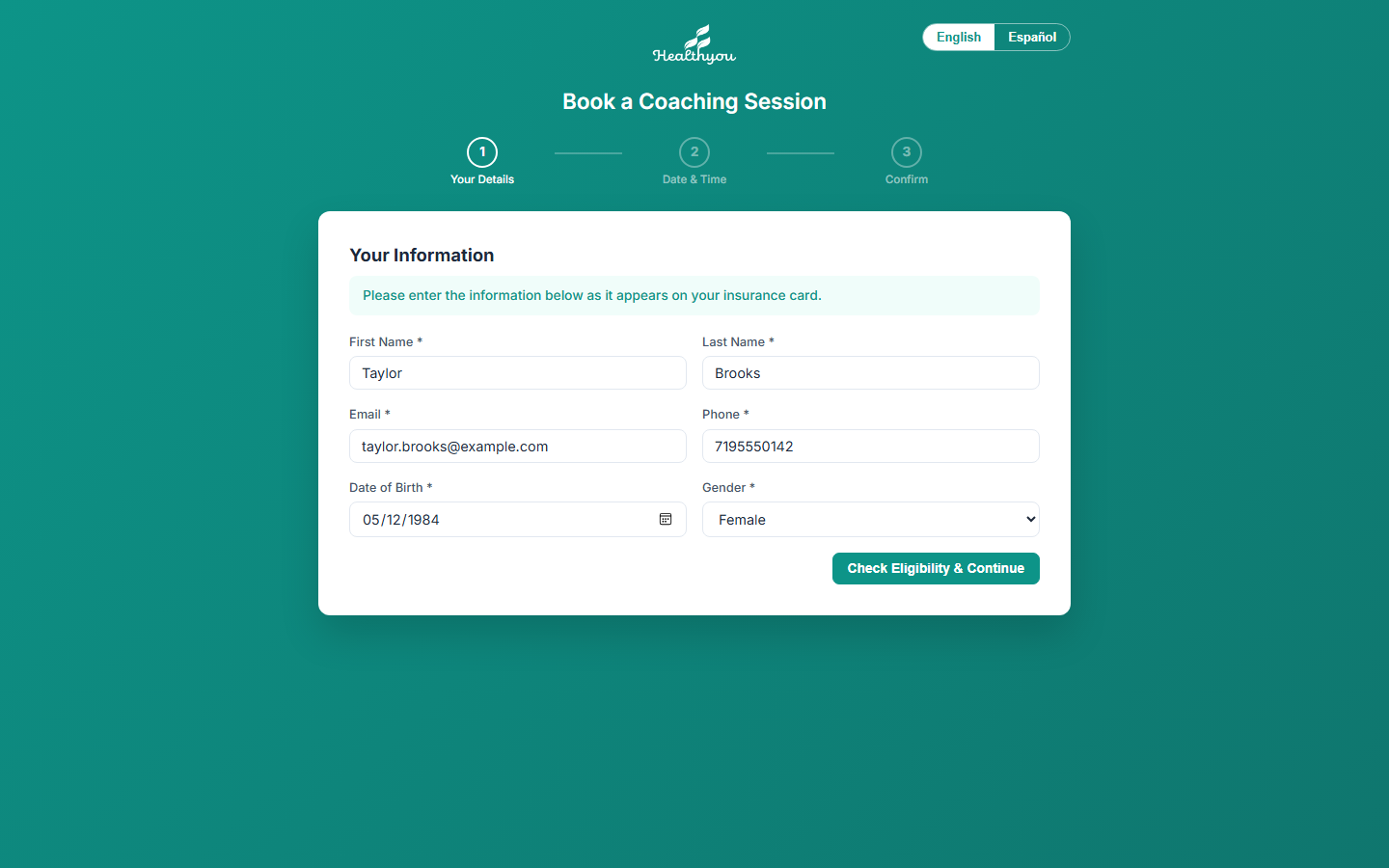
- Your details → Check Eligibility & Continue.
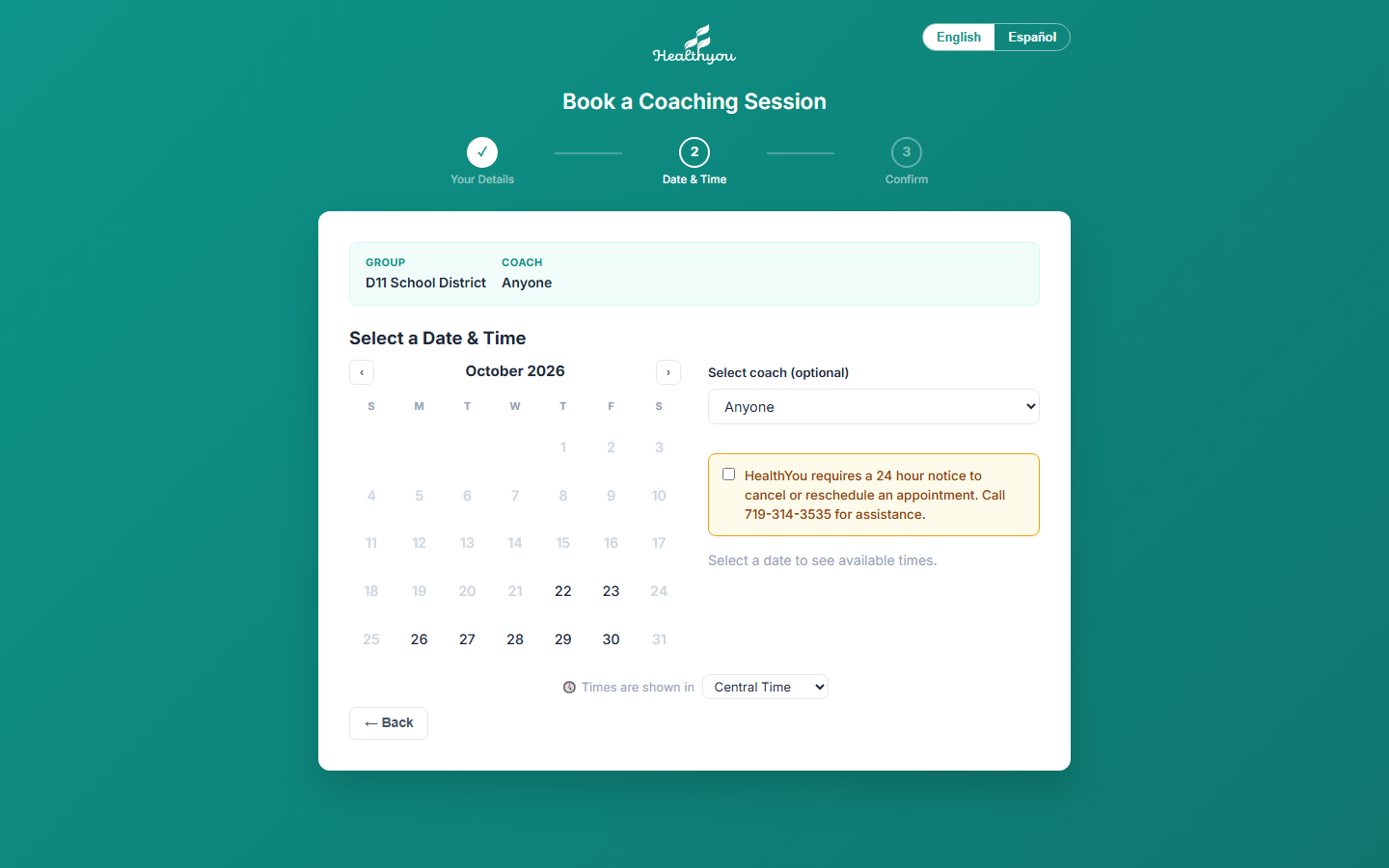
- Date & time: a coach or Anyone, tick the 24-hour notice, pick a day and a time. The time-zone menu shows times in their own zone.
- Confirm. A confirmation email follows with a Reschedule or Cancel button.
Not found on the eligibility file?
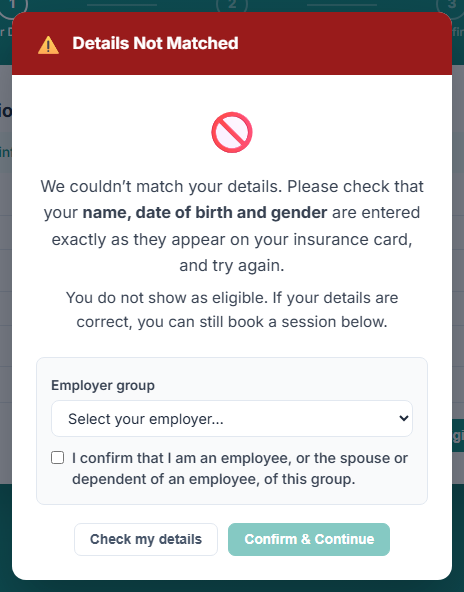
Check my details sends them back to fix a typo. Confirm & Continue lets an employee, spouse or dependent confirm their group and book; the session is flagged Self-attested eligibility.
Troubleshooting
| You see | What to do |
|---|---|
| Access denied: the mailbox is not in the HealthYou Coaches group | Microsoft 365 admin adds the mailbox to HealthYou Coaches; wait up to two hours; Test again. |
| Set at least one goal before saving | Add a goal (at least the goal or the Specific field), then save. |
| Please select a status before saving | Choose the session's status first. |
| A coach has no open times | Add their hours for the new month; check their time off and Outlook. |
| This sign-in link is invalid or has expired | Links last 30 minutes — request a new one. |
| Your sign-in has expired (Coach Portal) | You've been signed in 12 hours. Click Sign in again and open the emailed link; the page you were on picks it up, so save any notes you were typing once the message turns green. |
| A participant can't change their booking online | They're inside the cutoff: they call 719-314-3535, or the coach moves it. |
| A Bookings appointment isn't on the Session List | Reopen the Session List, which brings in anything new. Still missing: check it's in your Outlook calendar, then email support. |
| Payroll or counts look low | Only sessions in HealthYou count; import the Bookings exports. |
| A time looks hours off | All times are Mountain Time. |
| A Clinician Library handout stays blank, or says it is too large for the Office viewer | Word and PowerPoint files take a few seconds to open; over 10 MB, use Download. See the Clinician Library guide. |
| A client says a handout never came | Look at Materials sent on their page. Red: check their email address and send again. Delivered: ask them to look in junk mail. |
Questions about the guide: support@myhealthyou.com · 719-314-3535